

 IV
IV
Costs
Get your ad spend into Proferex so profit and ROI are accurate.
This page shows you how Proferex knows what you paid for each visit, so the Cost, Profit, and ROI in your reports match what you spent.
Cost can come from three places:
| Where cost comes from | Use it when |
|---|---|
| Cost sync | Your traffic source is TrafficJunky, TrafficStars, or ExoClick. Proferex pulls your spend from your account. |
| Cost in the campaign URL | Your traffic source can send what it charged for each visit. |
| Static cost | Neither of those. You enter a fixed cost per click or per conversion. |
Cost sync is the most accurate, because it uses the spend your traffic source charged you.
Cost sync
Cost sync pulls your spend from your TrafficJunky, TrafficStars, or ExoClick account and spreads it over your visits. You set it up once on the traffic source:
- Open the traffic source in Tracker → Traffic Sources.
- Under Traffic Source Adapter, pick Traffic Junky, TrafficStars, or ExoClick.
- Paste your API Key. See TrafficJunky, TrafficStars, or ExoClick for where to find it.
- Check that Campaign ID Token points to the row that holds the traffic source's campaign ID. The traffic source templates set this for you.
- Click Update.
See Cost sync for the traffic source settings.
Your campaign URL then carries the traffic source's campaign ID on every visit, and Proferex uses it to match spend to visits.
How often costs update
Proferex pulls today's spend every 15 minutes. Yesterday's spend is pulled one last time at 2 a.m. in the traffic source's timezone, once the traffic source has finished counting it. Today's cost can change through the day, so wait until the next morning before you compare a whole day with your traffic source.
TrafficJunky and ExoClick report in New York time, and TrafficStars in UTC. Proferex uses the same timezone, so each day's spend lands on that day's visits.
How spend is shared between visits
Your traffic source reports spend per campaign per day. Proferex shares each day's spend among the visits that carried that campaign's ID that day. Each visit gets its share, so cost shows correctly whether you look at the campaign, a lander, an offer, a country, or a zone.
If two of your Proferex campaigns use the same campaign ID at the traffic source, they share its spend.
Cost in the campaign URL
Some traffic sources can send what they charged for each visit. Put their cost macro in the Cost (CPC) row of the traffic source, such as cost with the value {cost}. The TrafficStars template fills this in for you.
Proferex then uses that amount as the cost of the visit on campaigns with the CPC cost model, unless cost sync gives a cost for it. See External ID and Cost (CPC).
Cost model
Each campaign has a Cost Model. It decides which costs Proferex uses for that campaign.
To change it, open the campaign and click Edit Campaign, then More. The cost settings appear once the campaign has a traffic source.
On a campaign whose traffic source has cost sync, you can also click API at the top of the campaign's page and then Edit Cost Settings.
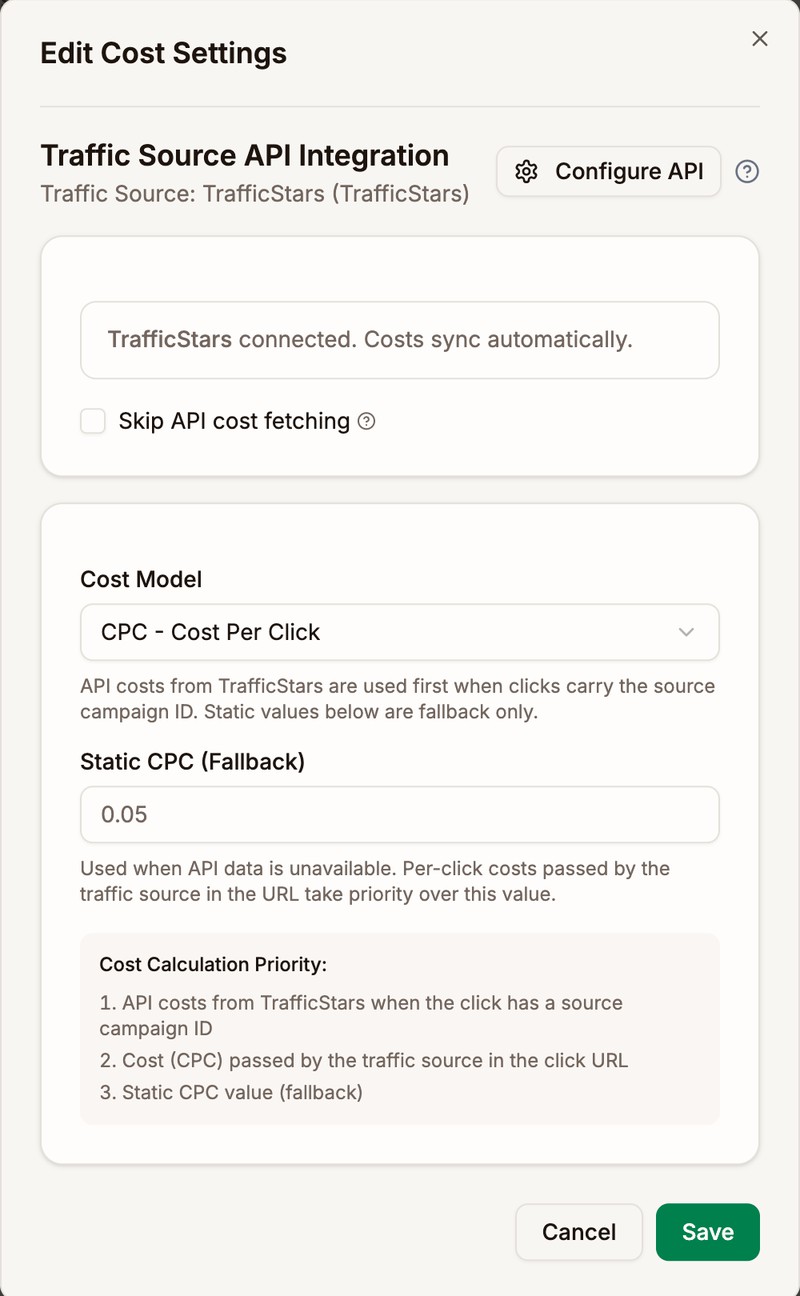
| Cost Model | Which cost Proferex uses for each visit |
|---|---|
| CPC - Cost Per Click | 1. The synced cost. 2. The cost in the campaign URL. 3. The Static CPC you enter. |
| CPA - Cost Per Acquisition | 1. The synced cost. 2. The Static CPA you enter, for each conversion. |
| CPM - Cost Per Mille | The synced cost only. Visits it does not cover cost nothing. |
The Cost Calculation Priority box in the form spells out the order for the model you pick.
A new campaign uses CPM if its traffic source has cost sync, and CPC otherwise. CPM is the right choice when you buy by impressions on TrafficJunky, TrafficStars, or ExoClick, because only cost sync knows what those impressions cost.
Skip API cost fetching ignores the synced cost for this campaign and uses the static value instead. It is not available for CPM.
A change to the cost model or the static cost only applies to new visits. Visits already recorded keep their cost.
Pause and resume at the traffic source
For campaigns on TrafficJunky and TrafficStars, you can pause and resume the campaign at the traffic source without leaving Proferex. TrafficJunky campaigns also get Sources and Ads, which open the campaign's spots and ads in TrafficJunky. ExoClick campaigns get Campaign Overview, which opens the campaign in ExoClick. Click API at the top of the campaign's page.
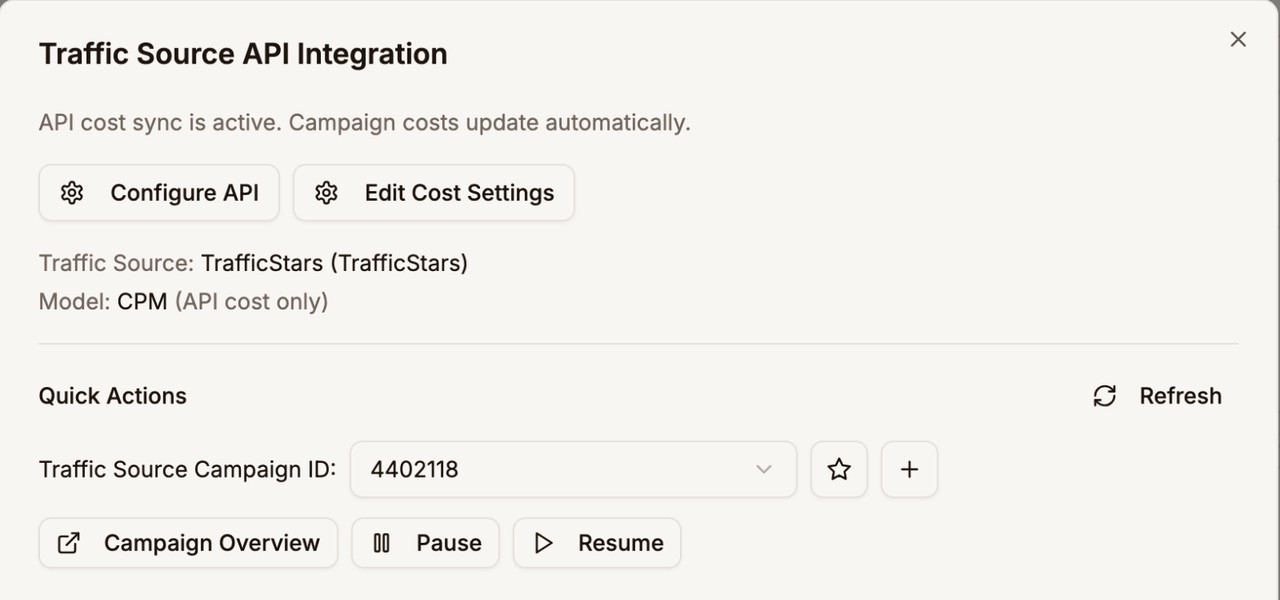
- Under Quick Actions, pick the Traffic Source Campaign ID. Proferex lists the IDs it has seen on this campaign's visits. The star makes one the default, and + adds one by hand.
- Click Pause or Resume.
Campaign Overview opens the campaign in your traffic source account.
Pausing at the traffic source stops new visits. Your Proferex campaign link keeps working for anyone who still has it.
For every button and message in the window, see The API window.
Currency
TrafficJunky and TrafficStars report spend in US dollars. ExoClick reports in the currency of your ExoClick account, which Proferex reads when you save the traffic source. Proferex converts every cost to your display currency, so cost and the tracked revenue run through Proferex compare in the same currency. See Currency.
Next step
Connect your traffic source's API, then check the next day's Cost on your campaign against the spend in your traffic source account.