

 IV
IV
Combinations
Decide which landers and offers visitors see, and how traffic is split between them.
This page shows you how to set up combinations: the landers and offers a campaign sends its visitors to, and how the traffic is split between them.
A combination is a list of paths. Each path is one route a visitor can take: a lander followed by an offer, or straight to the offer. Put two or more paths in a combination and Proferex splits the traffic between them, so you can test landers and offers against each other and keep the ones that make you money.
Every campaign uses one combination, and one combination can be used by as many campaigns as you like. A common setup is one combination per country and device, such as US - Mobile, shared by every campaign that sends US mobile traffic. When you change a combination, every campaign that uses it picks up the change within a minute.
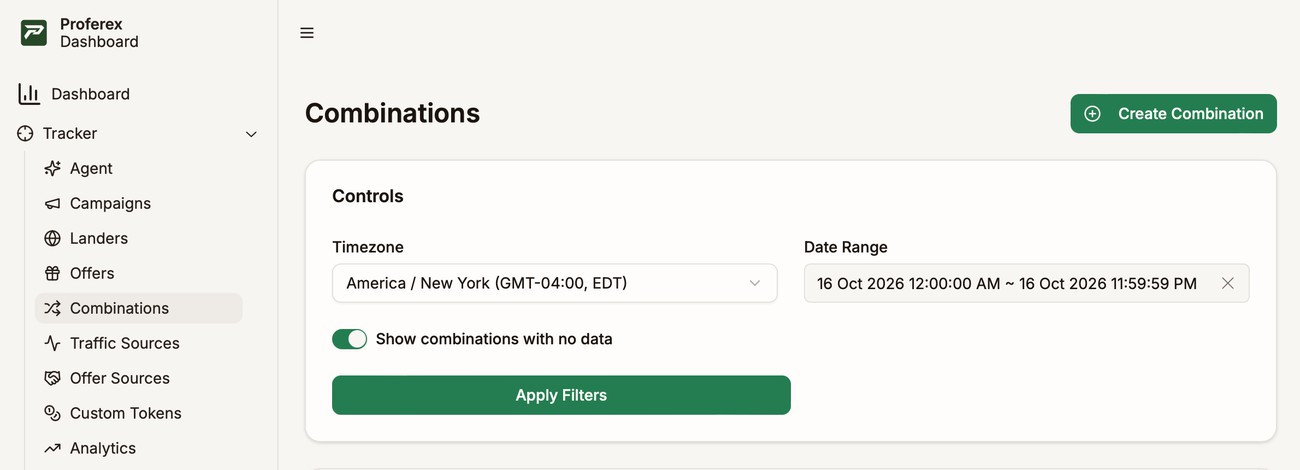
Go to Tracker → Combinations to see yours, and click Create Combination to add one.
Create a combination
Click Create Combination, give it a name you will recognise when you pick it in a campaign, such as US - Mobile, and add your paths on the Default tab.
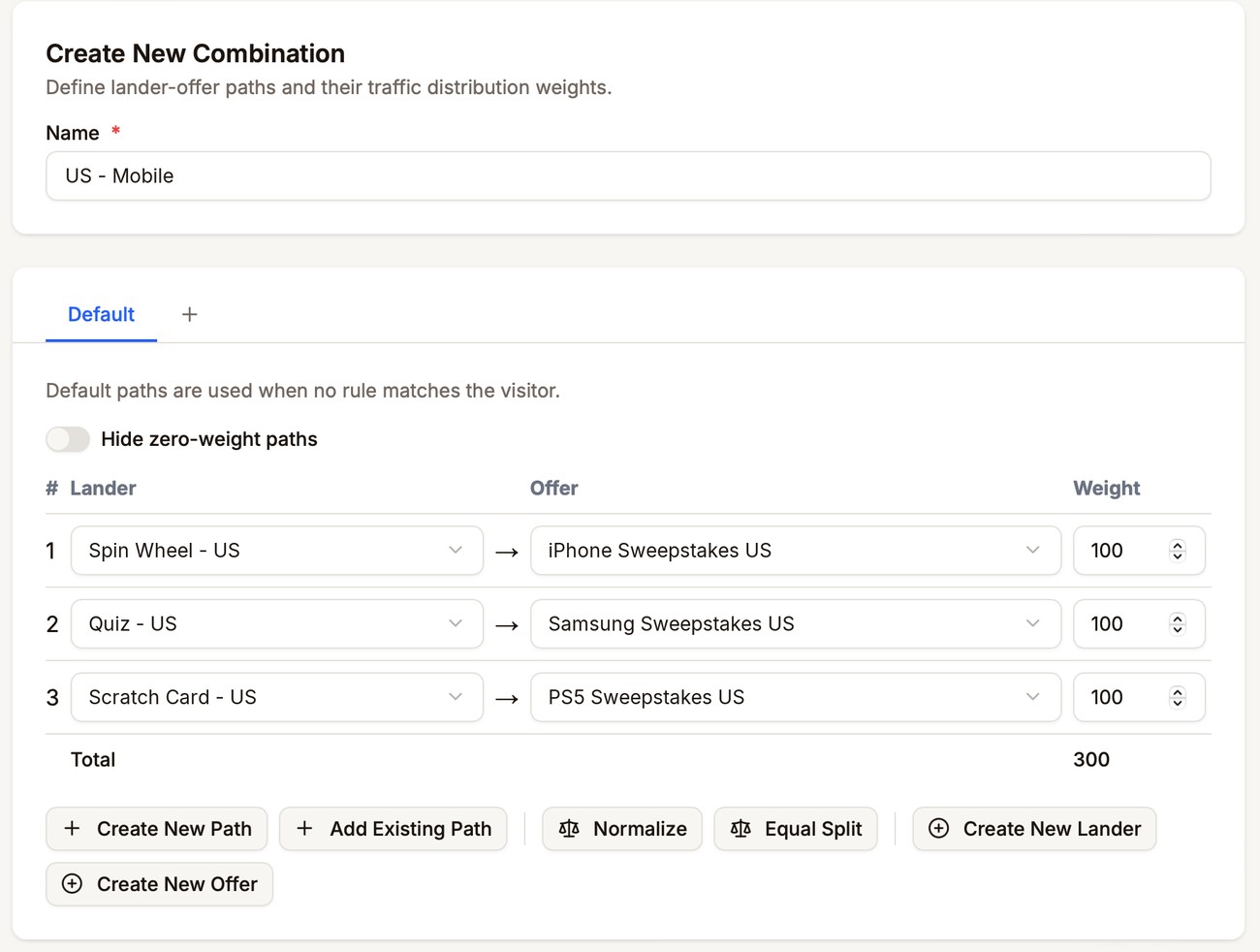
- Enter a Name.
- On the first row, pick a Lander, then an Offer.
- Click Create New Path to add another row, and pick its lander and offer.
- Set a Weight for each path. See Weight.
- Click Create Combination at the bottom of the page.
A combination needs a name and at least one complete path on the Default tab. Rows without an offer are left out when you save.
Paths are grouped into tabs above the list. The Default tab holds the paths visitors use unless a rule sends them somewhere else. To send some visitors elsewhere, such as mobile visitors to a mobile lander, add a rule. Each rule gets its own tab with its own paths.
Paths
Each row on a tab is a path. Pick the Lander, then the Offer.
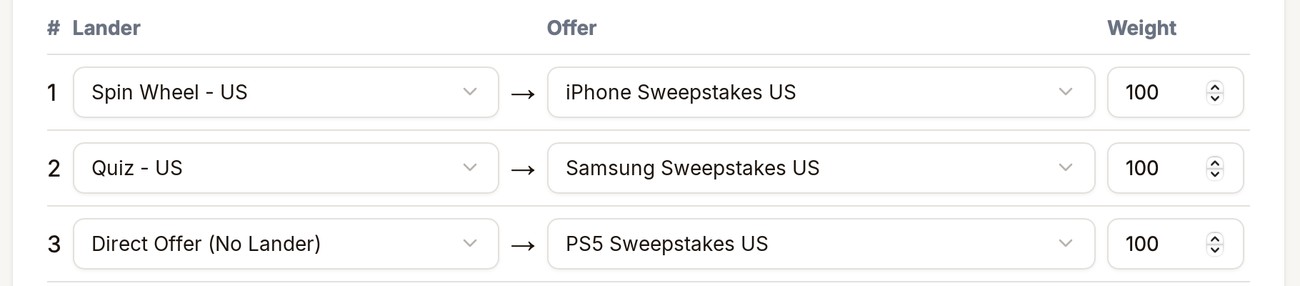
You don't need a lander. To send visitors straight from the ad to the offer, choose Direct Offer (No Lander) instead of a lander, like the third path above. Proferex counts visits for direct offer paths, but not clicks, because there is no lander to click through. For what visits, clicks, and the other metrics mean, see What the metrics mean.
Each lander and offer pair can only appear once on a tab.
Once a combination is saved, its paths can't be changed. To use a different lander or offer, delete the path with the trash icon and add a new one. The old path's visits and conversions stay in your reports.
Weight
The weight decides how much of the traffic a path gets compared with the other paths. Weights are relative, so they don't need to add up to 100. Distribution shows each path's actual share.
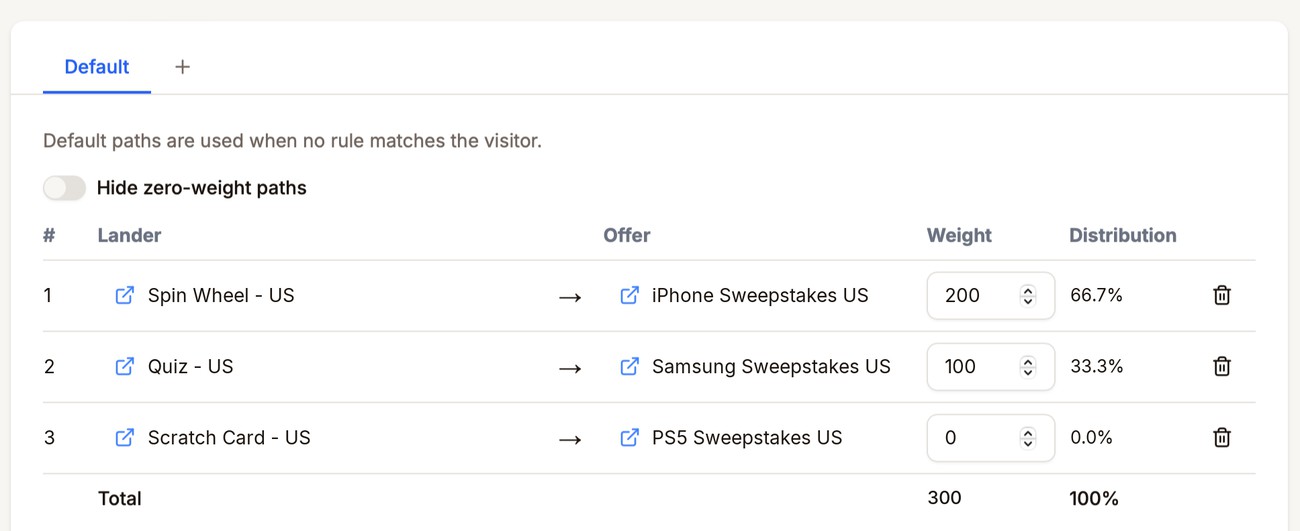
In this example the weights add up to 300. Spin Wheel - US has a weight of 200, so it gets 200 out of every 300 visitors, which is 66.7%. Quiz - US has a weight of 100, so it gets 33.3%. Weights of 2 and 1 would give exactly the same split.
Scratch Card - US has a weight of 0, so it gets no traffic. Set a weight to 0 to switch a path off without deleting it, so you can switch it back on later. Turn on Hide zero-weight paths to keep those paths out of the way while you edit the others.
Proferex picks a path for each visitor at random, in proportion to the weights. Over many visitors, the split matches the distribution.
Path buttons
Use the buttons under the paths to add paths, adjust their weights, and create landers and offers. Changes to paths and weights only apply to the tab you're on: Default, or the rule you're editing.

| Button | What it does |
|---|---|
| Create New Path | Adds an empty row with a weight of 100. |
| Add Existing Path | Copies paths from your other combinations. See below. |
| Normalize | Rescales the weights so they add up to about 100, keeping the same split. Paths at 0 stay at 0. |
| Equal Split | Gives every path the same weight, including paths at 0. While Hide zero-weight paths is on, hidden paths stay at 0. |
| Create New Lander | Creates a lander without leaving the page. Pick it in a path afterwards. See Landers. |
| Create New Offer | Creates an offer without leaving the page. Pick it in a path afterwards. See Offers. |
Copy paths from another combination
Click Add Existing Path to reuse paths you already set up in another combination. Each path shows its weight and the combination it comes from. Type in Search paths to find one by lander, offer, or combination name.
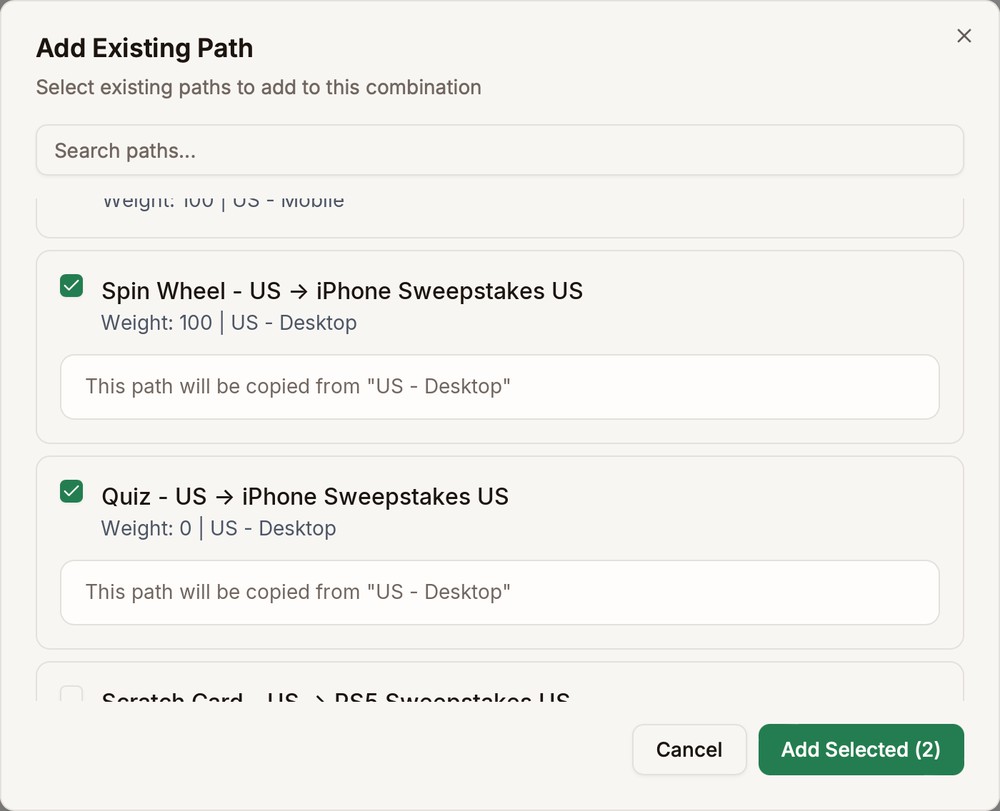
Tick the paths you want and click Add Selected. They are copied with their weights, so a path at 0 is still at 0 when it arrives. The combination you copy from is not changed.
Traffic Distribution
The Traffic Distribution panel under the paths shows the split for the tab you're on, Default or the rule you're editing, so you can check it before you save.
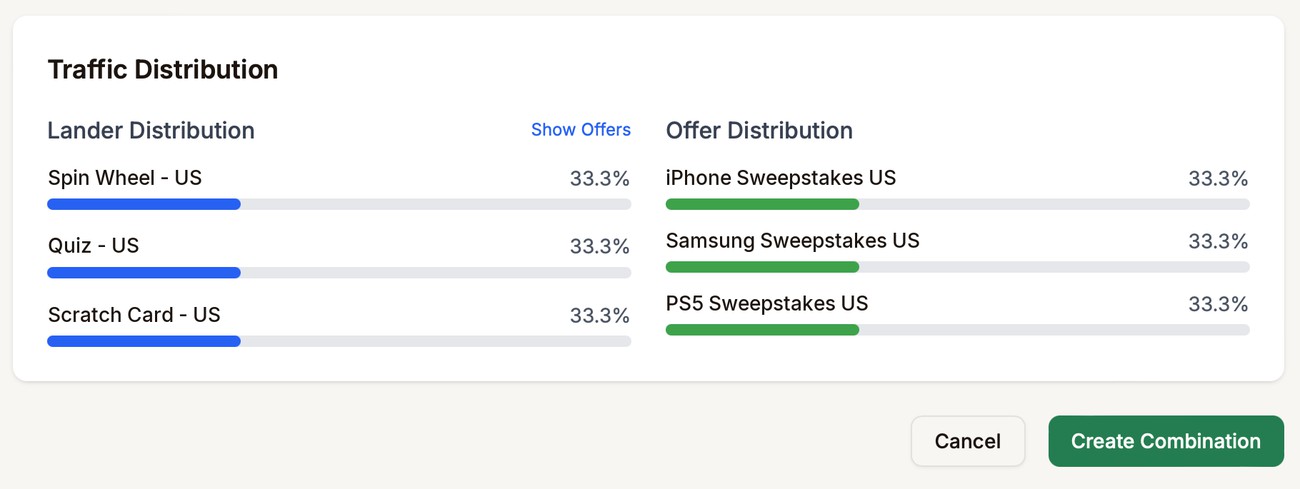
- Lander Distribution shows each lander's share. Direct offer paths are grouped as Direct Offer.
- Offer Distribution shows each offer's share across all landers.
Click Show Offers to see which offers each lander sends visitors to. Each lander's offers appear under it.
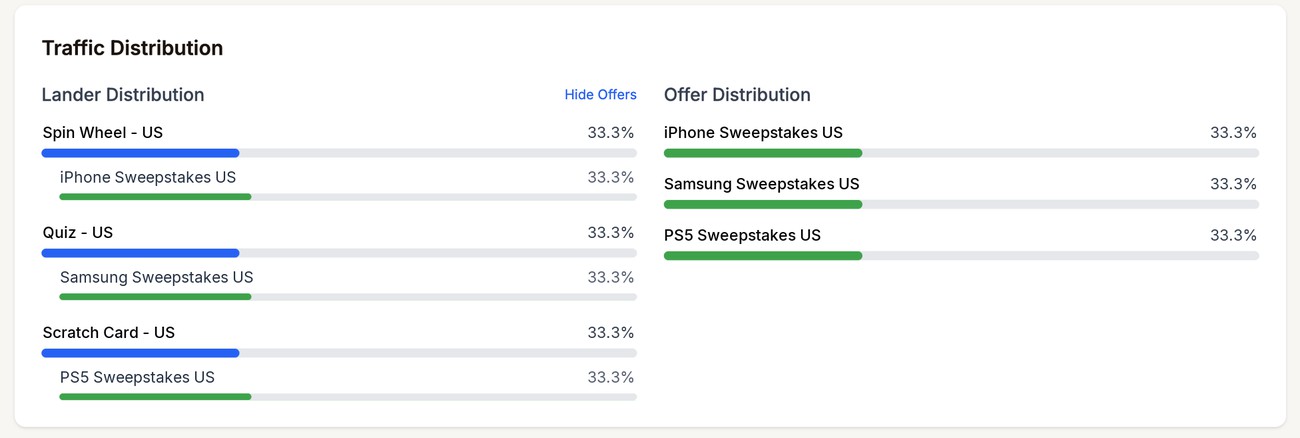
The percentage next to each offer is its share of all visitors, not its share of that lander's visitors. In this example each lander sends all its visitors to one offer, so each offer shows 33.3%, the same as its lander. If a lander got 50% of visitors and split them evenly between two offers, each of those offers would show 25%. Click Hide Offers to go back.
Rules
A rule sends some visitors down different paths from everyone else. For example, send Android visitors to a different offer, or visitors from Germany to a German lander. Visitors who don't match a rule use the Default paths.
To add a rule, click + next to the tabs. Each rule gets its own tab, named after the rule.
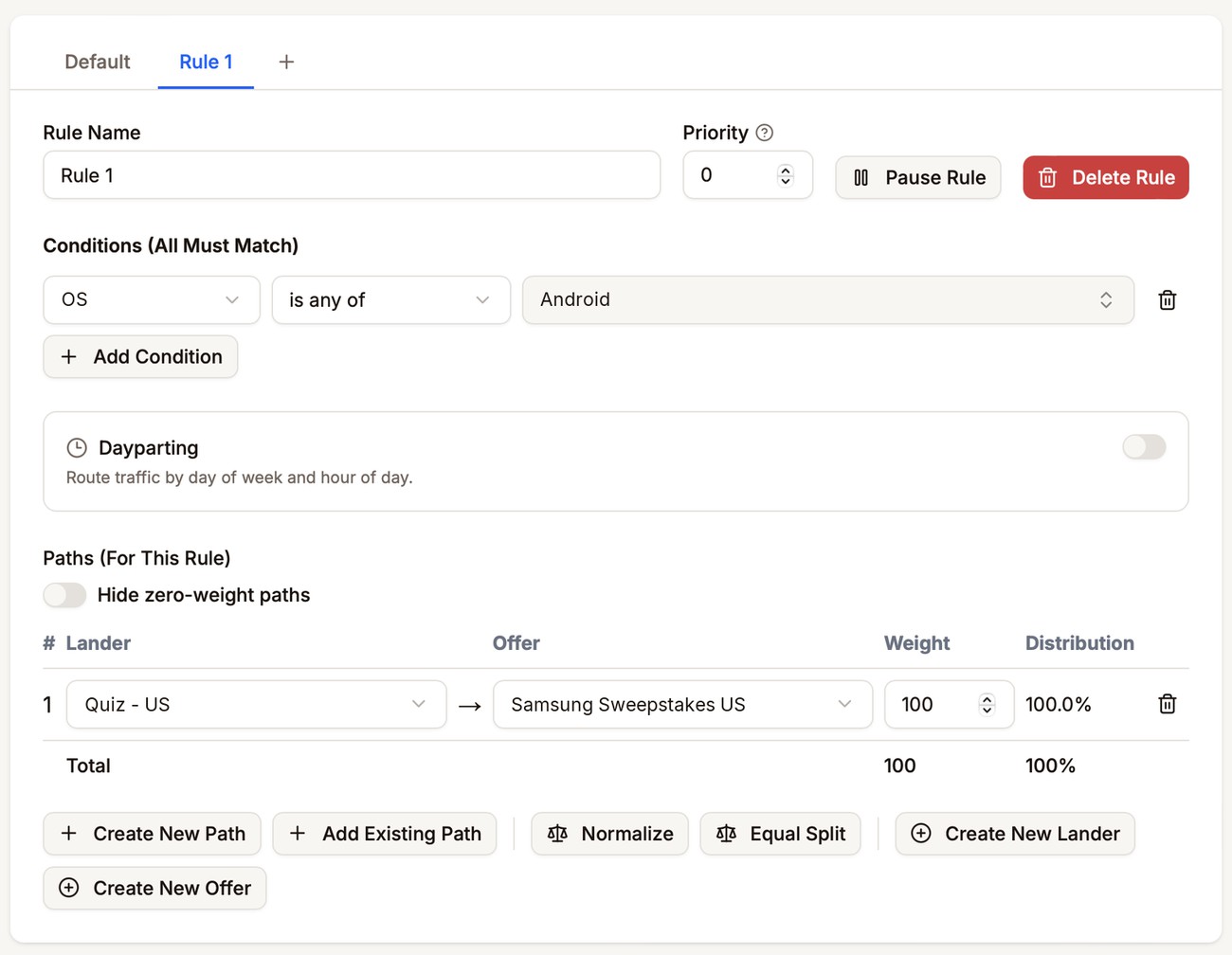
| Setting | What it does |
|---|---|
| Rule Name | How the rule appears on its tab and in your reports. |
| Priority | The order rules are checked in. A lower number means a higher priority, so a rule at 0 is checked before a rule at 1. |
| Conditions (All Must Match) | Who the rule applies to. A visitor must match every condition. |
| Dayparting | Limits the rule to certain days and hours. See Dayparting. |
| Paths (For This Rule) | Where matching visitors go. These paths work the same as on the Default tab. |
Pause Rule keeps the rule but stops using it, and Resume Rule turns it back on. A paused rule shows (Paused) on its tab. Delete Rule removes the rule when you save the combination.
How rules are checked
- Proferex checks your active rules in priority order, starting at 0. When two rules share a priority, the older rule goes first.
- The first rule whose conditions all match is used. Later rules are not checked.
- If no rule matches, the visitor uses the Default paths.
Put your most specific rules first. A broad rule at priority 0 catches visitors before a narrower rule further down gets a chance.
Conditions
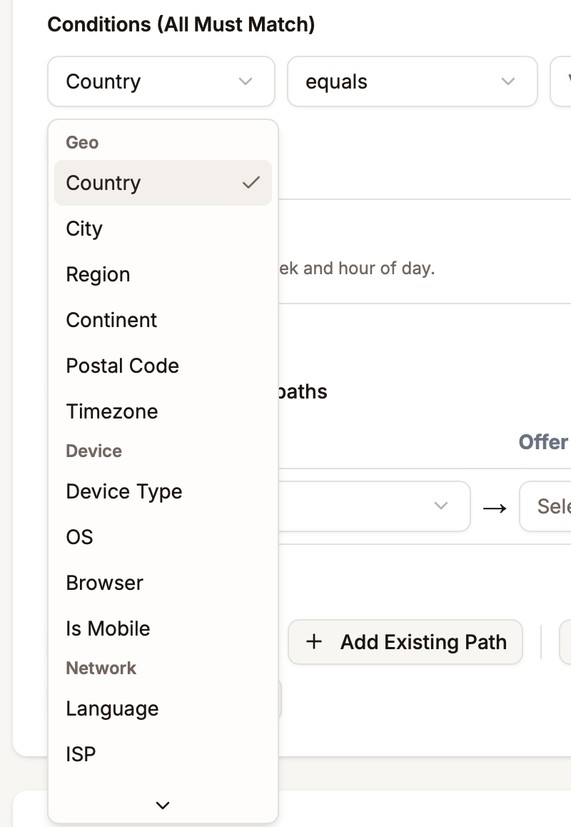
Every rule needs at least one condition. Pick a field, an operator, and a value, such as OS is any of Android. Click Add Condition to add more. A visitor must match all of them.
| Group | Fields |
|---|---|
| Geo | Country, City, Region, Continent, Postal Code, Timezone |
| Device | Device Type, OS, Browser, Is Mobile |
| Network | Language, ISP, Connection Type, Referrer |
| Traffic Vars | v1 to v10: the values your traffic source sends. See v1 to v10 |
The operator decides how the visitor's value for that field, such as their country or OS, is compared with the value you enter.
| Operator | A visitor matches if |
|---|---|
| equals | Their value is exactly what you enter. |
| not equals | Their value is anything except what you enter. |
| contains | Their value includes what you enter. |
| starts with | Their value begins with what you enter. |
| in (comma-separated) or is any of | Their value is one of the values in your list, such as US, CA, GB. |
| not in (comma-separated) or is not any of | Their value is none of the values in your list. |
Matching ignores capital letters and extra spaces.
For Country, Continent, Timezone, Language, Device Type, OS, Browser, Connection Type, and Is Mobile, you pick values from a searchable list instead of typing them. Select as many as you need. Each entry shows its name and code, such as United Kingdom (GB), so you never have to guess a code.
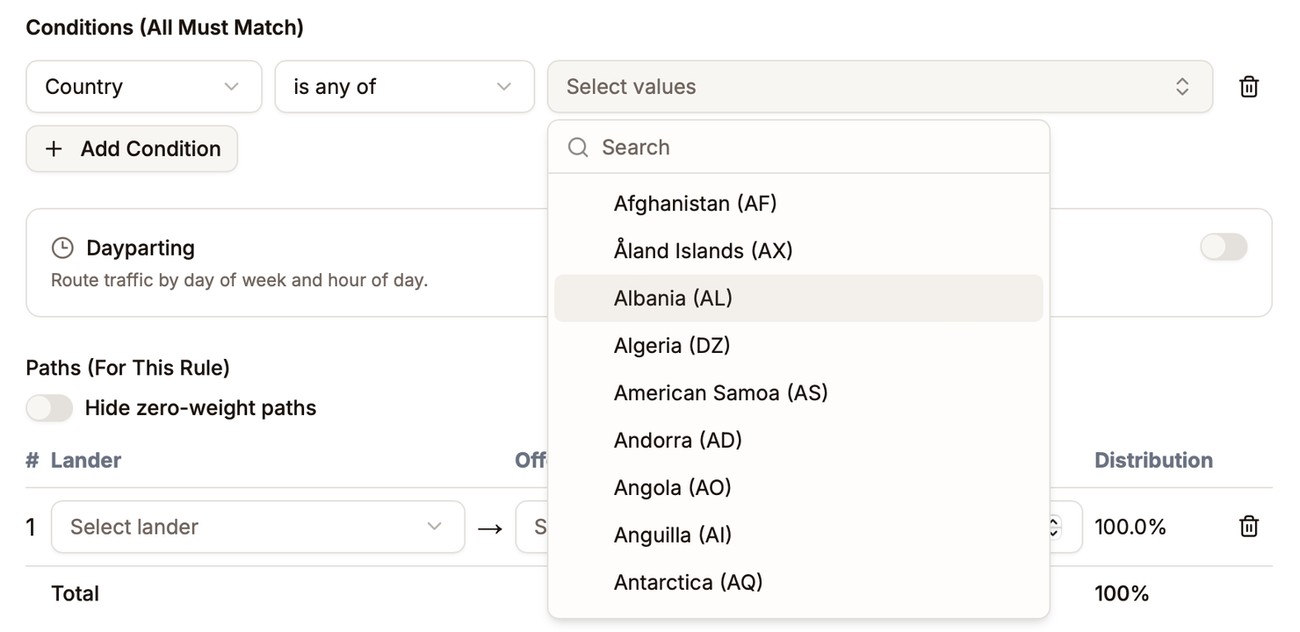
Fields with a list have four operators. With is any of and is not any of, you pick values from the list. With contains and starts with, you type text instead, which lets one condition match several related values. For example, Browser contains chrome matches Chrome, Chrome Mobile, and every other browser with "chrome" in its name.
The lists include the values Proferex records, but a very new value, such as a browser that was just released, may not be listed yet. If a value you need is missing, type it in the search box and click Add. The value is added to this condition only.

When you type a comma-separated list, empty entries are skipped, so a stray comma doesn't change who matches.
Connection Type is Wi-Fi (home or office internet, wireless or cable), Carrier (mobile data), Datacenter (cloud and hosting networks, where servers, VPNs and bots come from), or Unknown when the connection type can't be determined. To target one specific provider, use ISP.
Region uses the state or province code, not its name. For example, use NY for New York, CA for California, and BY for Bavaria.
Dayparting
Turn on Dayparting to use a rule only at certain hours of the week, for example to send evening traffic to an offer that converts better at night.
| Setting | What it does |
|---|---|
| Evaluate Time In | Visitor Local Timezone uses each visitor's own time. Fixed Timezone uses one timezone for everyone. |
| Schedule | A weekly grid with one row per day and one column per hour. The rule runs in the hours you select. |
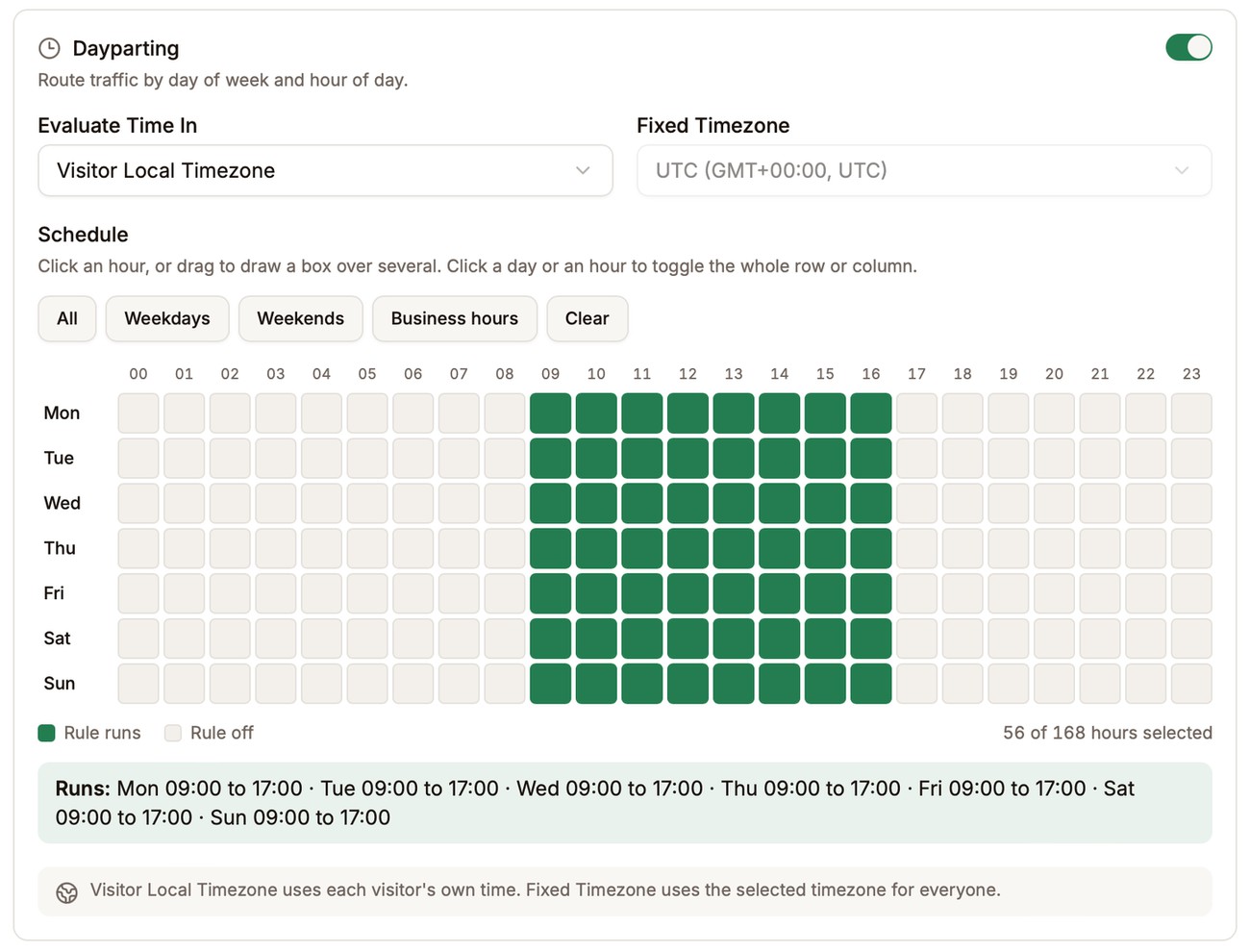
Click an hour to turn it on or off. To set several at once, press on an hour and drag to draw a box: every hour inside it turns on, or turns off if you started on an hour that was already on. Click a day to toggle its whole row, or an hour number to toggle that hour on every day. All, Weekdays, Weekends, Business hours, and Clear fill the grid in one click. Business hours is Monday to Friday, 09:00 to 17:00.
Selected hours are green. The count under the grid shows how many of the week's 168 hours are selected, and the Runs line below it spells out the schedule day by day.
Each day has its own hours, so a schedule can cross midnight. For Friday night until 6am, select Friday 22 and 23 and Saturday 0 to 5. The line under the grid spells out the schedule, such as "Fri 22:00 to 24:00 · Sat 00:00 to 06:00".
Each cell is a whole hour. Selecting 22 covers 22:00 to 22:59.
With Visitor Local Timezone, Proferex uses the timezone of each visitor's location. In the rare case that a visitor can't be located at all, they don't match the rule and go on to your next rule or the Default paths. If every visitor must follow the schedule, use Fixed Timezone.
With Fixed Timezone, pick the timezone from the list. A rule with a timezone Proferex doesn't recognize can't be saved, so it never silently stops matching.
A schedule needs at least one selected hour. To run all the time, turn dayparting off instead.
Dayparting counts as a condition, so a rule can use dayparting on its own.
When no path can be used
If an offer reaches its conversion cap, paths that use it stop getting traffic until the cap resets. The other paths share the traffic instead.
If no path is left, for example because every offer is capped, the visitor goes to your Fallback Campaign. To set it, open Tracker → Tracker Settings, pick a campaign under Select Fallback Campaign, and click Update. Without a fallback campaign, the visitor sees an error page.
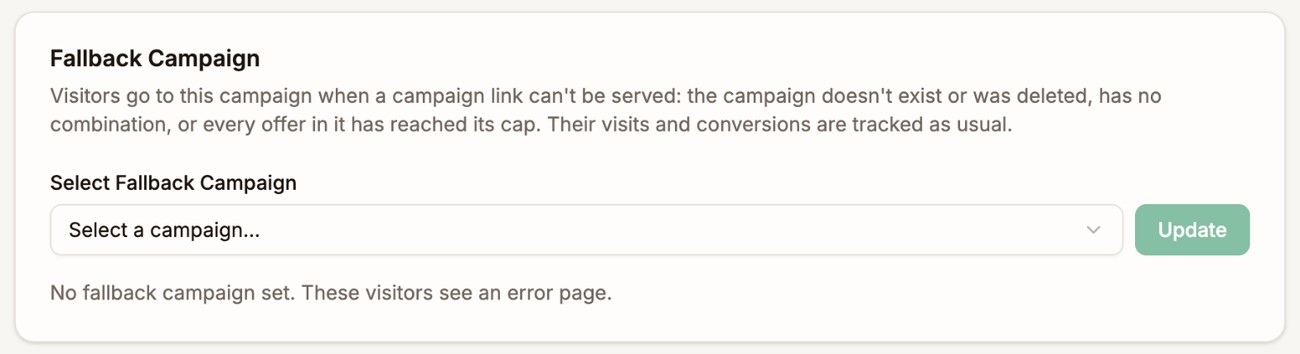
This works the same inside a rule. If a rule matches but some of its offers are capped, the rule's other paths share the traffic. If every offer in the rule is capped, the visitor goes to the Fallback Campaign, not to the Default paths. Rule traffic is usually targeted, so the Default offers may not suit those visitors.
Use a combination in a campaign
Each campaign sends its visitors through one combination, which you pick in the campaign's Combination field. This section covers the combination part only. For the rest of the campaign settings, see Campaigns.
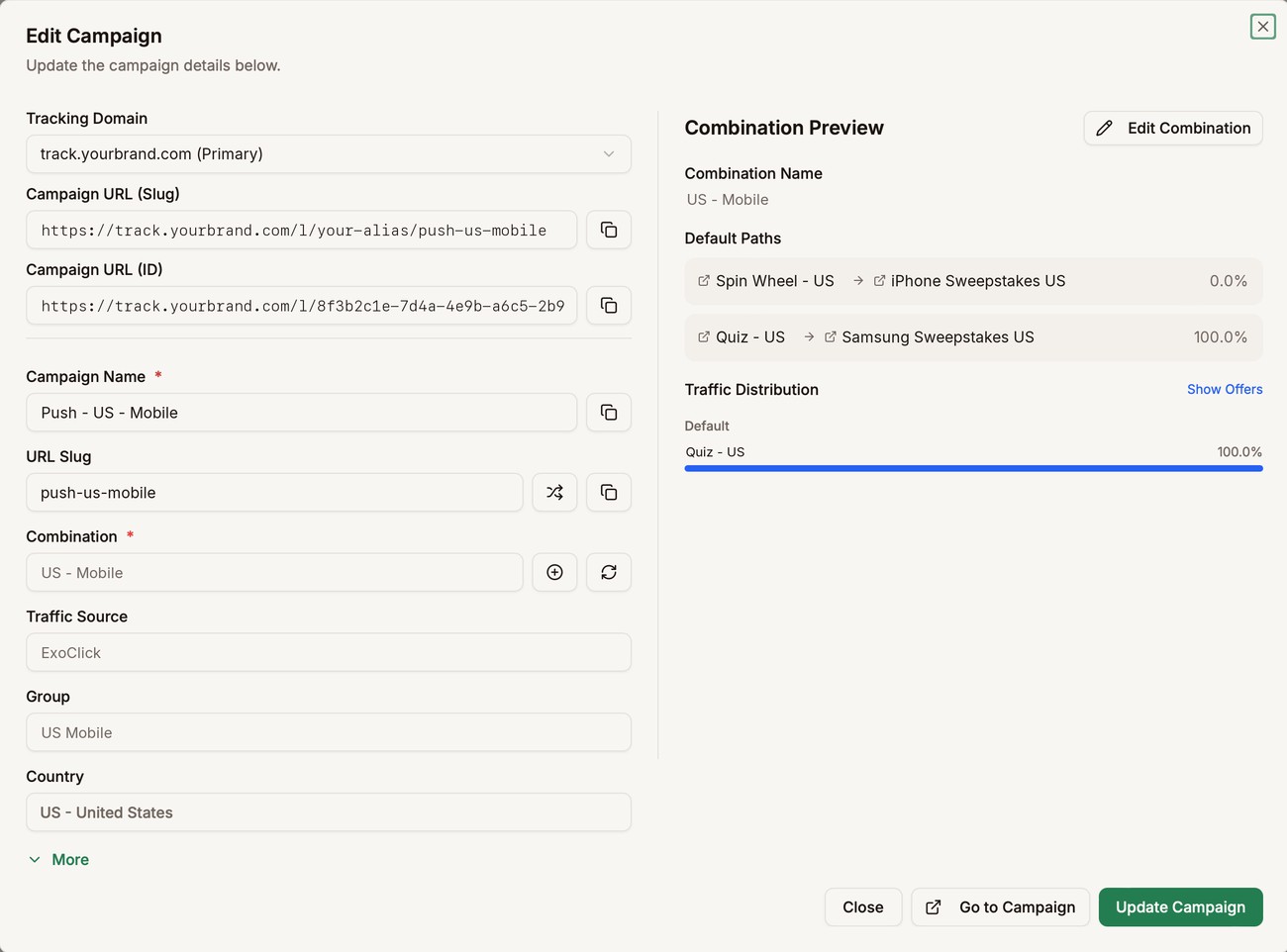
The + button next to the field creates a new combination without leaving the campaign. If you created a combination in another browser tab, click the refresh button to see it in the list.
On the right, Combination Preview shows the combination's paths, how much of the traffic each one gets, and how it splits between landers. If the combination has rules, they're listed under the default paths.
To change the combination, click Edit Combination. The combination form opens inside the campaign window.
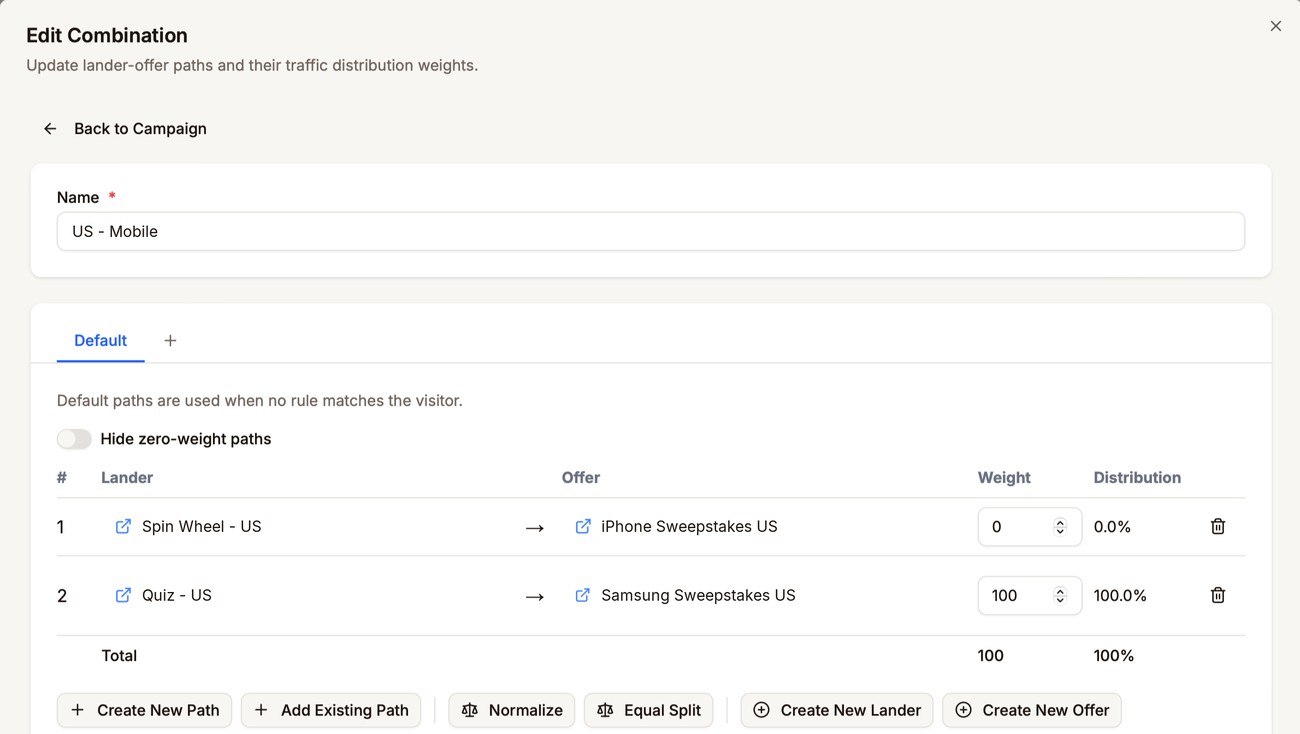
Click Update Combination at the bottom to save. This changes the combination itself, so every campaign that uses it gets the change, not just this one. Back to Campaign takes you back without saving.
To try a change on one campaign only, duplicate the combination, edit the copy, and pick the copy in that campaign. See Edit, duplicate, or delete.
See how each one performs
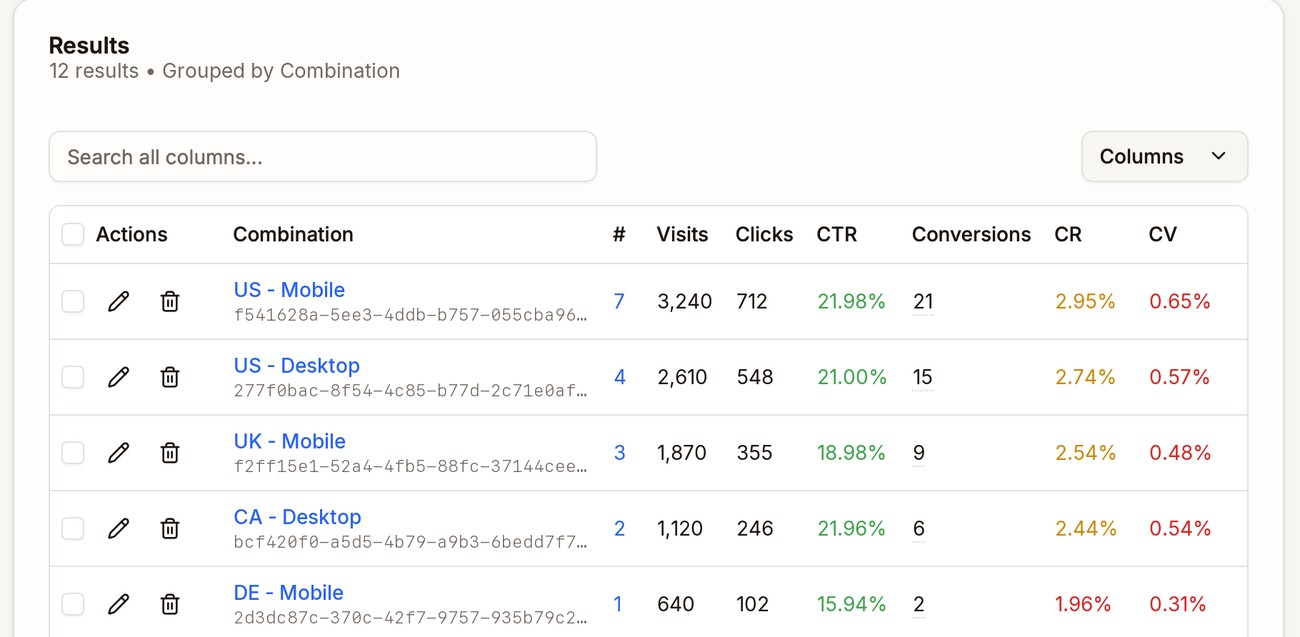
The list shows each combination's visits, clicks, conversions, and the rest of your numbers for the date range you pick. Use Columns to choose which numbers to show.
The # column shows how many campaigns use each combination. Click the number to see which ones, then click a campaign to open it.
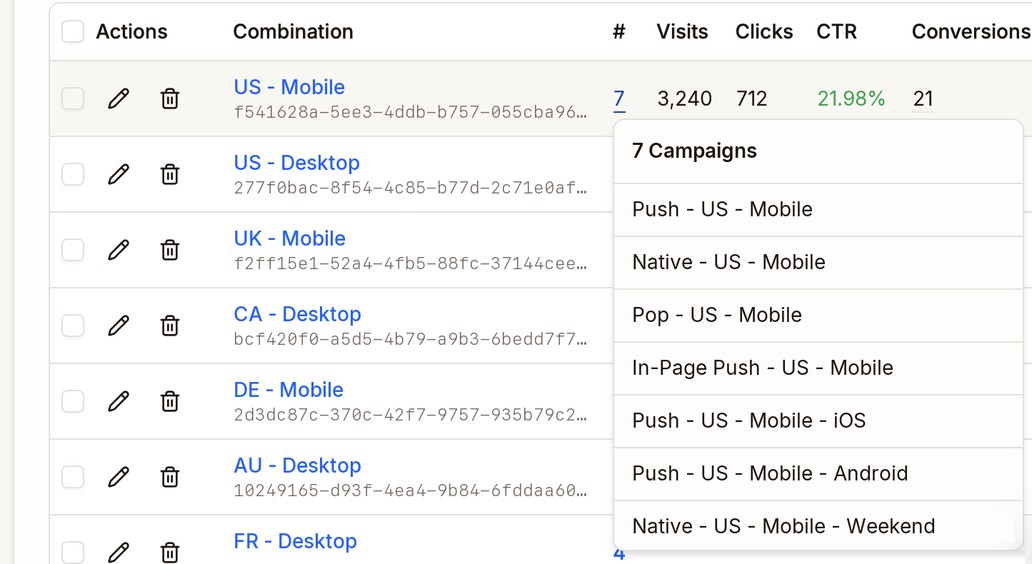
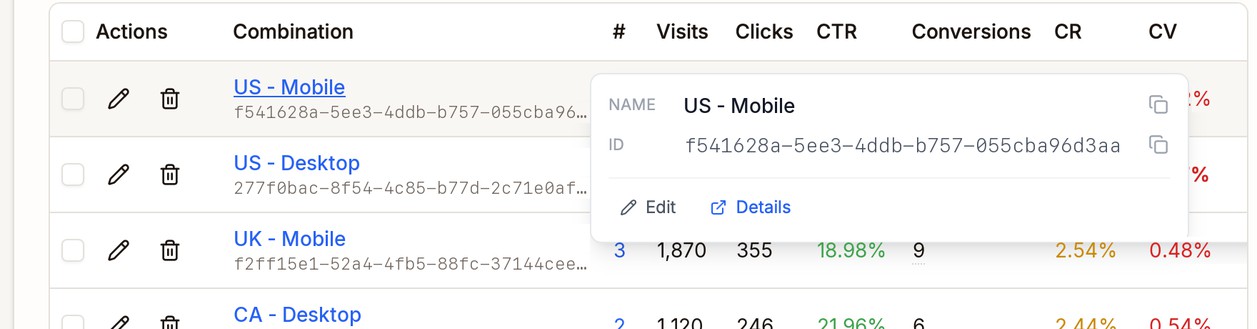
Hover over a combination's name to copy its name or ID. Edit opens its settings, and Details opens its own page, where you can see how it performs for each path, rule, lander, offer, country, and more. See Detail Pages.
Edit, duplicate, or delete
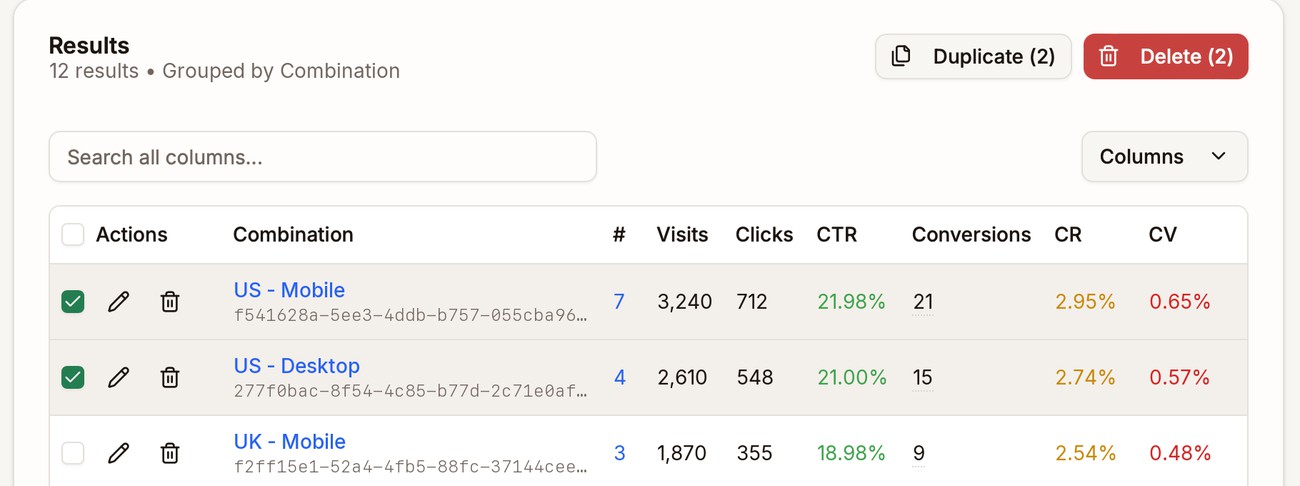
Each row has two icons:
- Edit opens the combination's settings.
- Delete removes the combination.
Tick several rows to duplicate or delete them all at once. Duplicate and Delete appear at the top, with the number you picked.
Duplicating copies the paths, weights, and rules. The copy's name ends in (Copy), and no campaign uses it until you pick it in one.
Next step
Create a campaign and pick this combination in its Combination field. See Campaigns.