

 V
V
ExoClick
Track ExoClick clicks, send it your conversions, and pull your spend.
This page shows you how to set up ExoClick in Proferex: track its clicks, send it your conversions, and pull your ad spend automatically.
Apply the template
Go to Tracker → Traffic Sources, click Create Traffic Source, then Templates → ExoClick. The template fills in everything below. You only need to change the parts marked You fill in.
If you set it up by hand instead, copy the tokens exactly as written, including the curly brackets.
Variable mappings
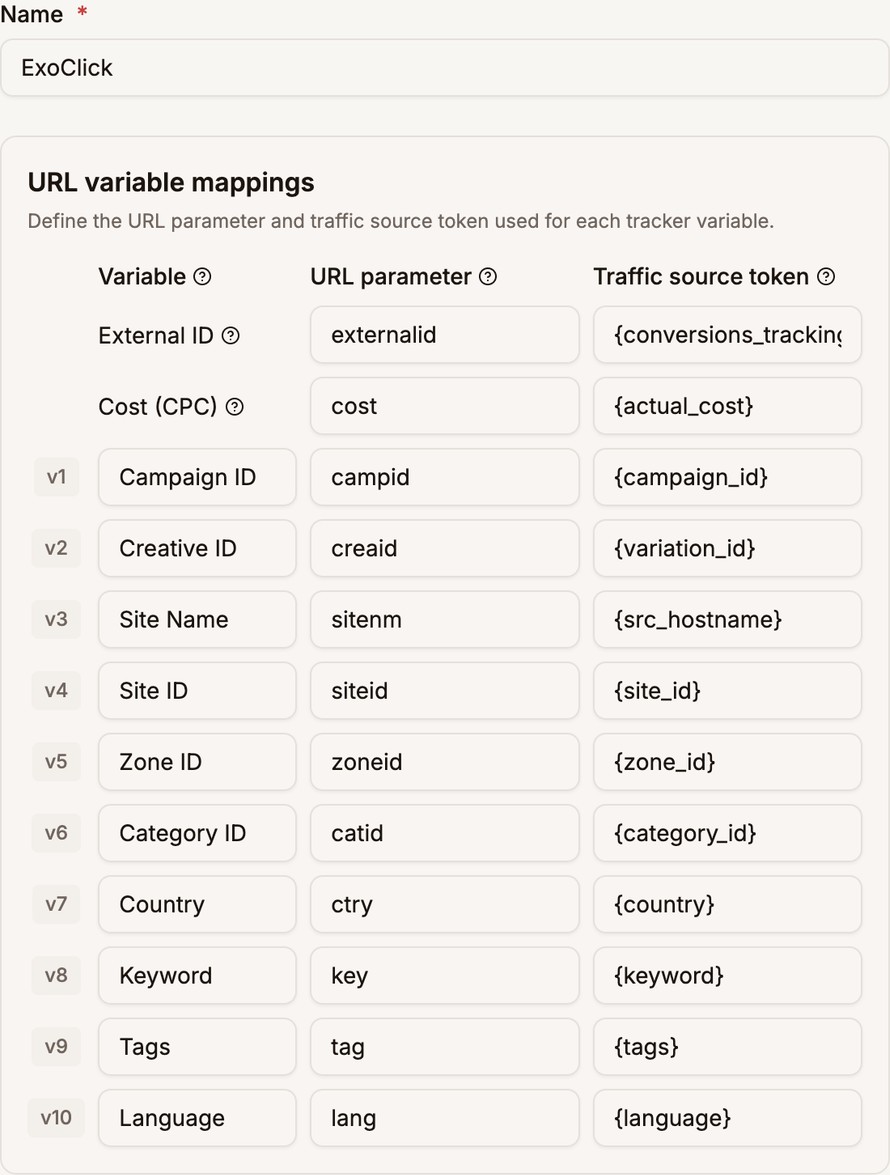
| Variable | URL parameter | ExoClick token |
|---|---|---|
| External ID | externalid | {conversions_tracking} |
| Cost (CPC) | cost | {actual_cost} |
| v1 Campaign ID | campid | {campaign_id} |
| v2 Creative ID | creaid | {variation_id} |
| v3 Site Name | sitenm | {src_hostname} |
| v4 Site ID | siteid | {site_id} |
| v5 Zone ID | zoneid | {zone_id} |
| v6 Category ID | catid | {category_id} |
| v7 Country | ctry | {country} |
| v8 Keyword | key | {keyword} |
| v9 Tags | tag | {tags} |
| v10 Language | lang | {language} |
{conversions_tracking} is ExoClick's click ID. It can be very long, and Proferex keeps all of it.
Postback URL and cost sync
The template sets Traffic Source Adapter to ExoClick and fills in this postback address:
https://s.magsrv.com/tag.php?goal=YOUR_GOAL_ID&tag={externalid}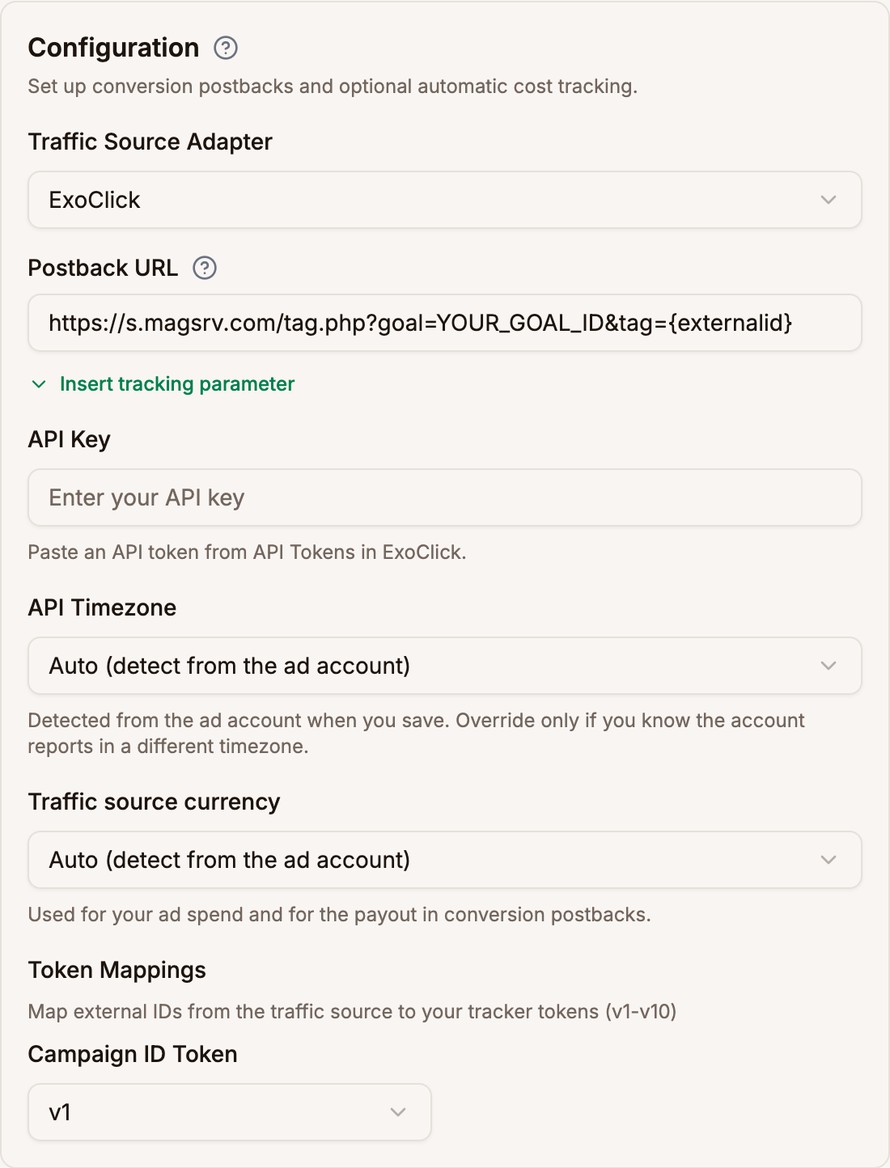
You fill in:
- In the Postback URL, replace
YOUR_GOAL_IDwith the ID of the conversion goal you created in ExoClick. - In API Key, paste an ExoClick API token. In ExoClick, click your email in the top right, choose API Tokens, and click New API Token.
The rest is set for you:
- API Timezone is set to Auto and detected from your ExoClick account when you save. Change it only if you know your account reports in a different timezone.
- Traffic source currency is also set to Auto and read from your ExoClick account when you save. Change it only if the detected currency is wrong. It is used for your ad spend and for the payout in conversion postbacks.
- Campaign ID Token is
v1, the row that carries{campaign_id}. Keep it that way, or cost sync cannot match spend to your clicks.
Don't want cost sync? Set Traffic Source Adapter to None (Manual Cost Tracking) and leave the API token empty. Everything else keeps working, and each click's cost comes from the Cost (CPC) row instead. See Costs.
Control the campaign from Proferex
Once cost sync is set up, click API at the top of an ExoClick campaign's page in Proferex.
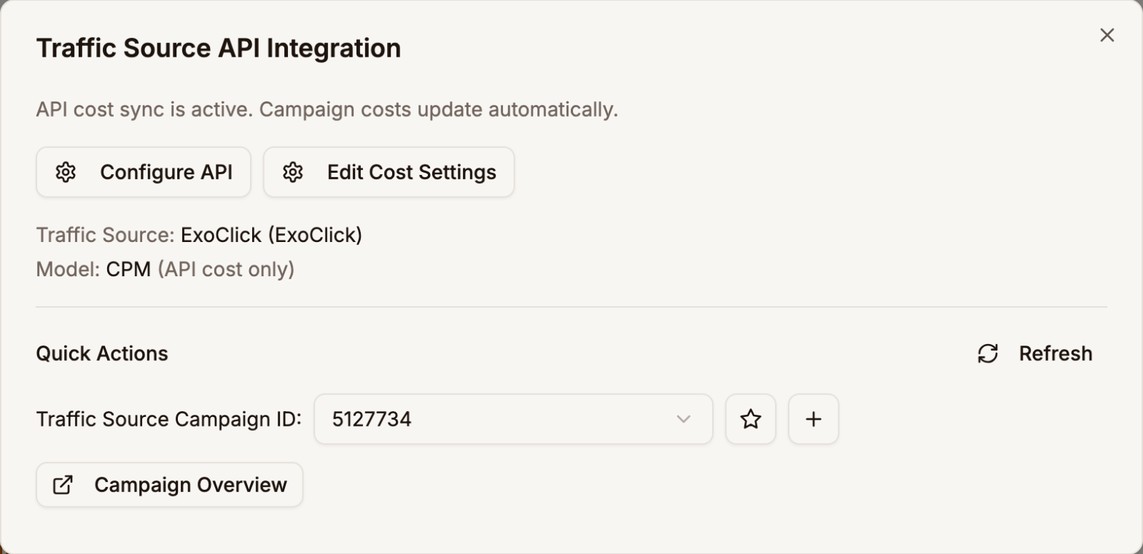
Under Traffic Source Campaign ID, pick the ExoClick campaign, then click Campaign Overview to open it in ExoClick. Proferex can't pause or resume ExoClick campaigns, so do that in ExoClick.
To find the zones to block, group the campaign by V5, the zone ID. See Campaign Reports.
Next step
Save the traffic source, then create a campaign with it. See Campaigns.