

 IV
IV
Custom Tokens
Capture extra traffic-source values on every click.
This page shows you how to build custom tokens: values of your own that Proferex creates for every click from a template you write.
A custom token is useful when you want to send a value that no single traffic source variable gives you. A common example is a sub ID for your offer source that combines the traffic source's campaign and zone, such as 9921_48211. Your offer source then shows which campaigns and zones convert, in its own reports.
Each click can carry three custom tokens. You use them as {custom_token}, {custom_token2}, and {custom_token3}.
How a custom token gets its value
You set up a custom token on a campaign with one or more definitions. Each definition has a template, such as {v2}_{v1}. On every click, Proferex:
- Picks one active definition for the token. With more than one, it picks at random, weighted by their Weight.
- Fills in the template with the click's values. For a click with
48211in v1 and9921in v2,{v2}_{v1}becomes9921_48211. - Applies any value transformations.
- Saves the result with the click.
Proferex does this for each of the three tokens on its own.
If a campaign has no active definition for a token, it uses the default template on its traffic source. See Default custom token templates.
Add a definition
Open the campaign and go to its Custom Tokens tab. The Token Definitions card lists the campaign's definitions.
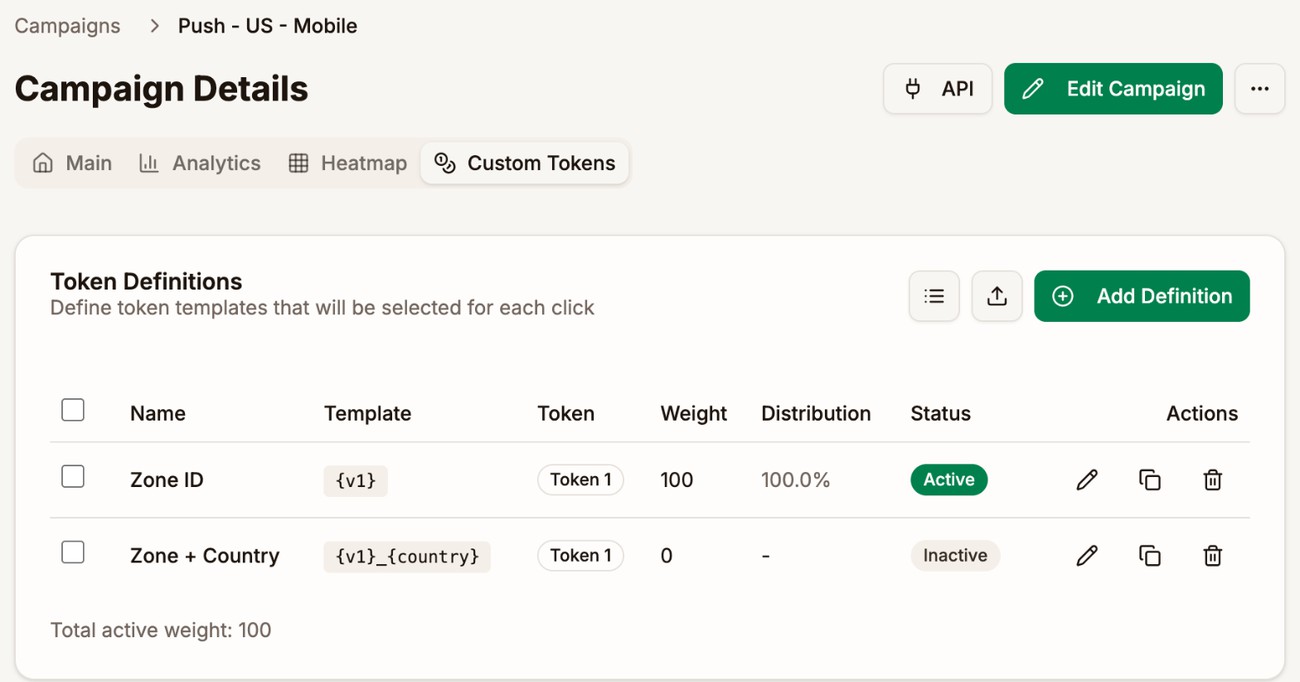
Click Add Definition:
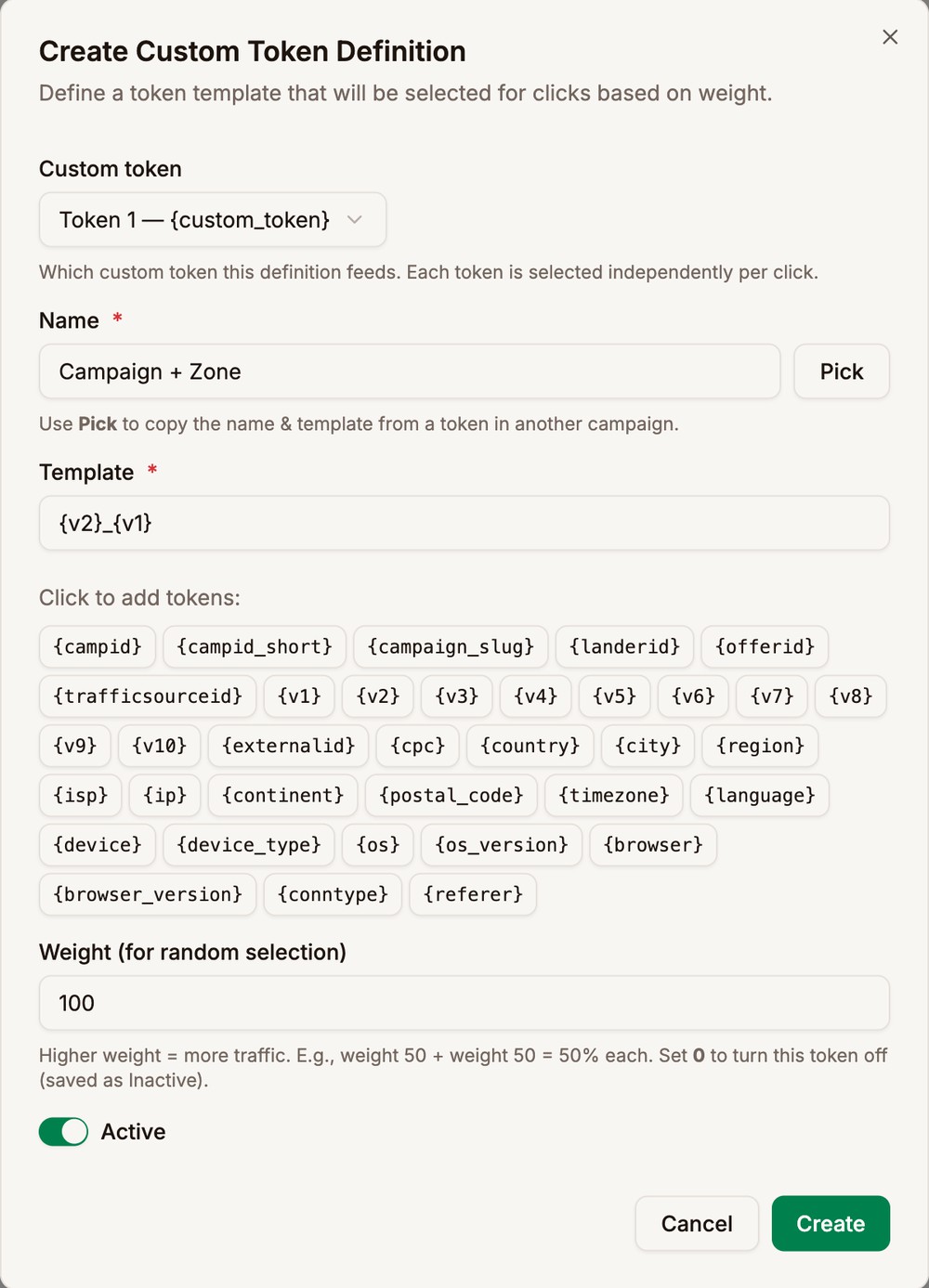
| Field | What it does |
|---|---|
| Custom token | Which token the definition fills: Token 1 for {custom_token}, Token 2 for {custom_token2}, or Token 3 for {custom_token3}. |
| Name | A name you will recognise, such as Campaign + Zone. |
| Template | Your own text, placeholders, or both. Click a token under Click to add tokens to add it. |
| Weight (for random selection) | How often this definition is picked compared with the token's other active definitions. 0 turns it off. |
| Active | Turn it off to stop using the definition without deleting it. |
Click Create. New clicks use the definition straight away. Clicks already recorded keep the value they had.
Pick, next to Name, copies the name and template from a definition in another campaign.
What a template can use
A template can use the campaign's values, such as {campid}, {campid_short}, {campaign_slug}, {landerid}, {offerid}, and {trafficsourceid}. It can also use the traffic source's values, {v1} to {v10}, {externalid}, and {cpc}, and the visitor's location and device, such as {country}, {city}, {device_type}, and {os}.
A template can't use {clickid} or another custom token.
If the click has no value for a placeholder, the placeholder stays as written. For example, {v3}_US stays {v3}_US when the traffic source sent no v3.
Test two values against each other
Give one token two active definitions with the same weight, such as angle-a at 50 and angle-b at 50. Each value then goes to about half of the clicks. The Distribution column shows each definition's share.
Value transformations
A value transformation swaps one value for another before it is saved. Use it when a partner expects a different value than the one your template produces, or to hide a raw ID. Under Value Transformations, click Add Transformation.
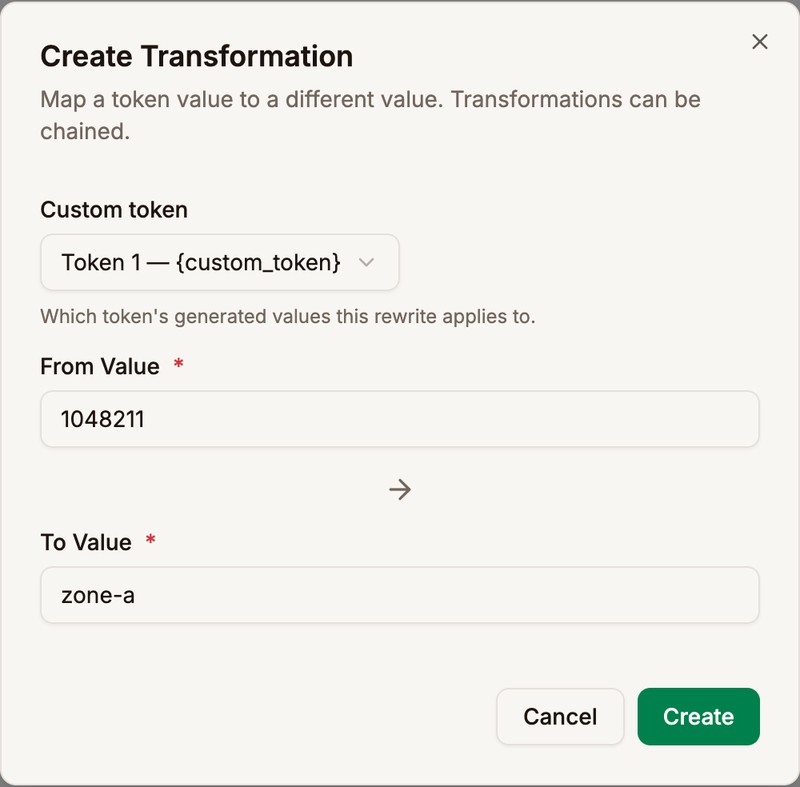
- Pick the Custom token.
- Enter the From Value, the value to replace.
- Enter the To Value, the value to use instead.
- Click Create.
The From Value must match the whole value exactly, including capital letters. Transformations can follow each other: if a becomes b, and b becomes c, a click with a ends up with c.
Split one value between several
A transformation can have more than one To Value. Each click with the From Value then gets one of them, picked at random by Weight. Use it to test two sub IDs against each other, or to send only part of the traffic under a new value.
- In Create Transformation, enter the From Value and the first To Value.
- Click Add another To Value and enter the next one.
- Set a Weight for each. Share shows the part of the clicks each one gets.
- Click Create.
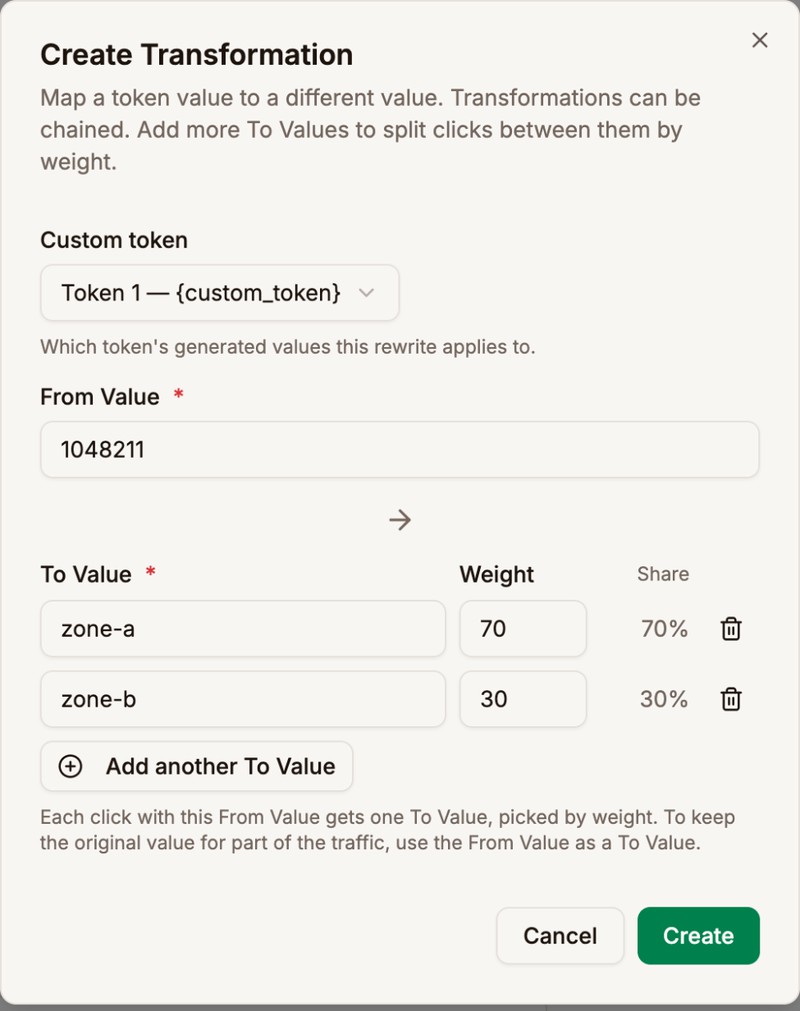
To keep the original value for part of the traffic, add the From Value itself as one of the To Values. For example, 1048211 at weight 30 and zone-a at weight 70 leaves 30% of clicks unchanged.
Use the token
Put {custom_token}, {custom_token2}, or {custom_token3} in an Offer URL, a lander URL, or a traffic source's postback URL. Proferex replaces it with the click's value.
For example, this Offer URL sends the click ID in aff_sub and the custom token in aff_sub2:
https://trk.rewardhubs.com/c?offer_id=4821&aff_id=10937&aff_sub={clickid}&aff_sub2={custom_token}See Sub ID.
Add custom tokens to many campaigns
- In the campaign form, More → Custom Tokens lets you add definitions while you create or edit a campaign.
- The upload icon on the Token Definitions card adds many definitions at once, typed in or from a CSV file.
- Tracker → Custom Tokens lists every definition across all your campaigns. Tick several to edit or delete them together.
To copy a definition within a campaign, click its duplicate icon.
See how each value performs
The Custom Tokens Performance card on the campaign's Custom Tokens tab shows the visits, clicks, conversions, and revenue for each value. Pick which tokens to show in Tokens.
To compare values across campaigns, go to Tracker → Analytics and group by Custom Token 1, 2, or 3. See Analytics.
Next step
Add {custom_token} to your Offer URL, then open your campaign link once and check the value in the Click/Conversion Log. See Tracker Settings.