

 IV
IV
Campaigns
Build the tracked link that ties traffic, landers, and offers together.
This page shows you how to create a campaign: the tracked link you put in your ads at a traffic source.
A campaign ties your setup together. It says where the traffic comes from (the traffic source) and where visitors go (the combination of landers and offers). Every visitor who opens the campaign link is recorded, so you can see what each campaign costs and earns.
Create your traffic source, landers, offers, and combination first. A campaign only connects them.
Go to Tracker → Campaigns to see your campaigns, and click Create Campaign to add one.
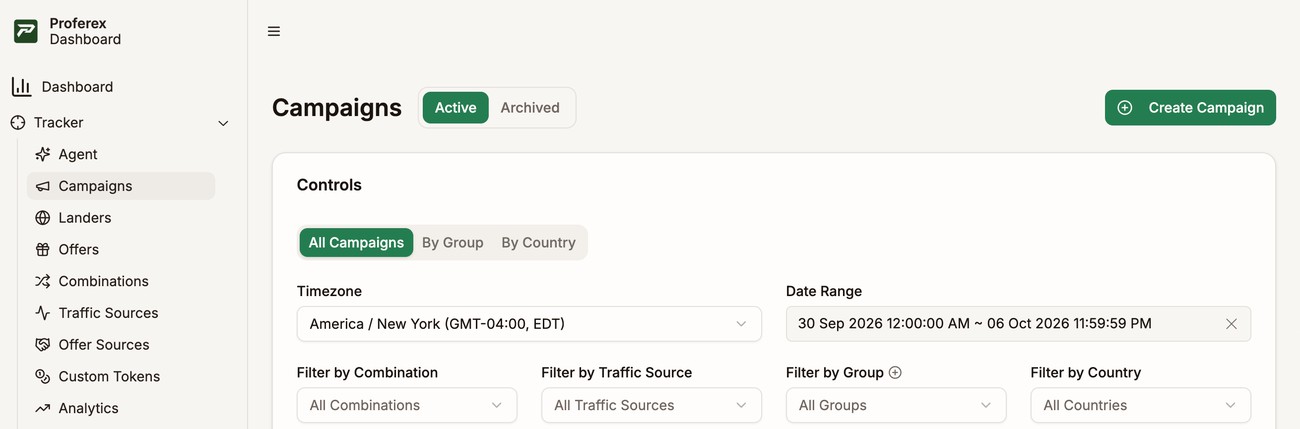
Create a campaign
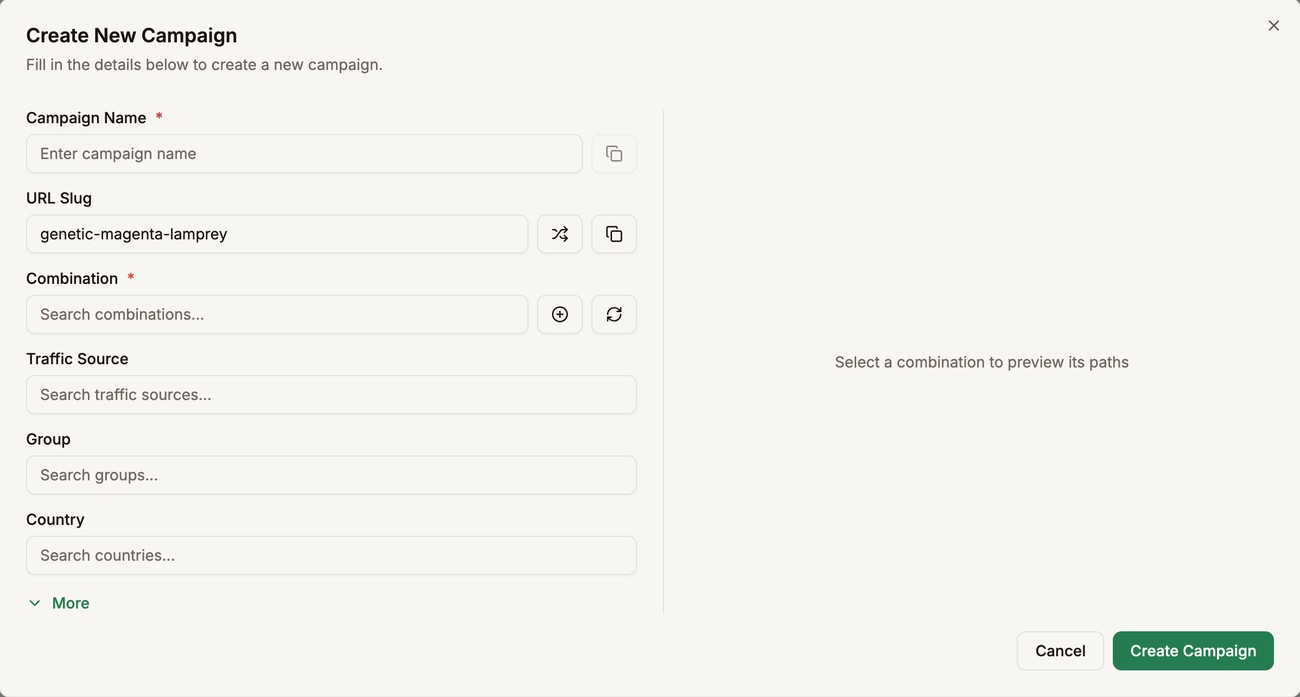
- Enter a Campaign Name you will recognise in your reports, such as
Push - US - Mobile. - Pick a Combination. The Combination Preview on the right shows where visitors will go.
- Pick the Traffic Source the ads run on.
- Click Create Campaign.
| Field | What it does |
|---|---|
| Campaign Name | How the campaign appears in your lists and reports. Required. |
| URL Slug | The readable part of the campaign URL. A random one is filled in for you. Click the shuffle button for another, or type your own. |
| Combination | The landers and offers visitors are sent to, and how the traffic is split between them. Required. |
| Traffic Source | Where the ads run. It adds the traffic source's tokens to the campaign URL, so the details of each click come back to Proferex. |
| Group | Optional. Puts related campaigns together. Type a new name to create a group. |
| Country | Optional. The country the campaign targets, so you can filter and group campaigns by country. |
The + and refresh buttons next to Combination create a combination without leaving the campaign and reload the list. See Use a combination in a campaign.
Click More for the extra settings:
- Cost Model sets how Proferex counts what you pay for the traffic. It appears once you pick a traffic source. See Costs.
- Custom Tokens add values of your own to every click. See Custom Tokens.
- Notes is a place for anything you want to remember about the campaign.
Copy the campaign URL
After you click Create Campaign, the form changes to Campaign Saved! and shows the campaign URL. The form stays open so you can copy it.
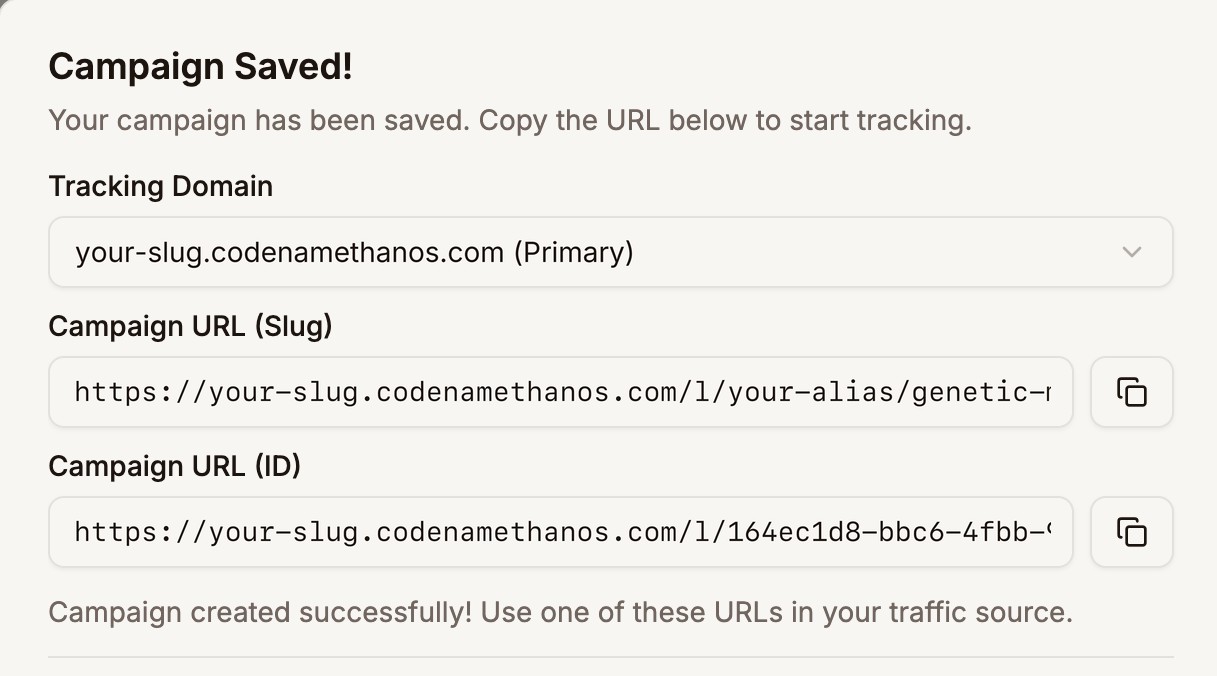
Each campaign has two URLs. Both track the same way.
| URL | Looks like |
|---|---|
| Campaign URL (Slug) | https://track.mydomain.com/l/YOUR-ALIAS/push-us-mobile |
| Campaign URL (ID) | https://track.mydomain.com/l/YOUR-CAMPAIGN-ID |
Pick another domain in Tracking Domain to use it in the URL. See Tracking Domain.
When the campaign has a traffic source, the URL already ends with that traffic source's tokens. For a traffic source that passes a zone ID, a campaign ID, and the cost of the click, the URL looks like this:
https://track.mydomain.com/l/YOUR-ALIAS/push-us-mobile?zone={zoneid}&campid={campaignid}&cost={cost}Paste it into your ad as it is. The traffic source fills in each value in curly braces on every click.
Click Go to Campaign to open the campaign's own page, or Close to go back to your list.
The campaign's own page
Click a campaign's name in your list to open its page.
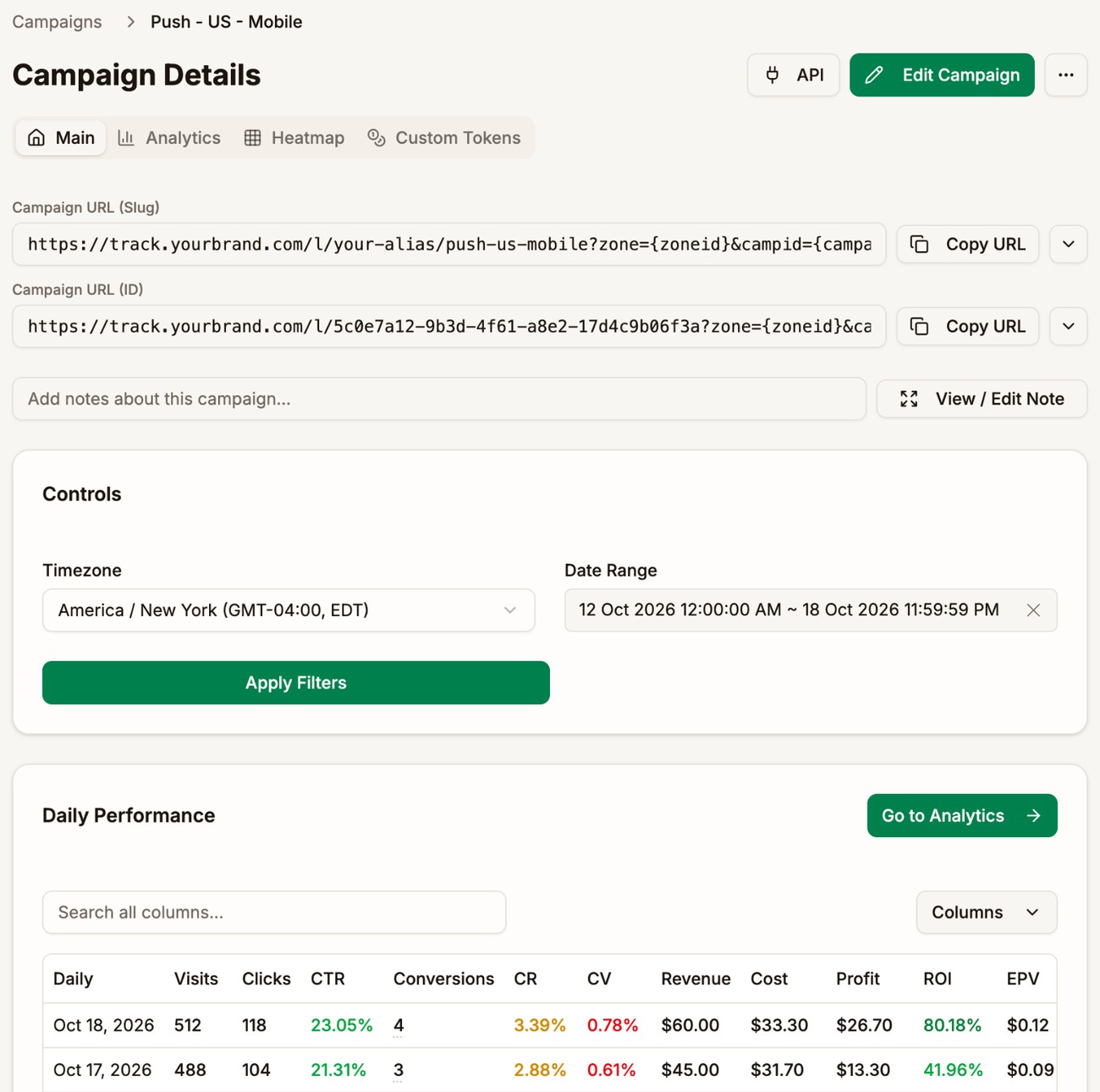
At the top are both campaign URLs. Copy URL copies one. If you have more than one tracking domain, the arrow next to it switches the domain. View / Edit Note opens the campaign's notes.
| Tab | What it shows |
|---|---|
| Main | The campaign's numbers by day, by lander and offer, by rule, and by custom token. Each table has a button that opens the full report. |
| Analytics | The campaign's numbers broken down the way you choose, such as by country, device, or lander. Click a tab to change the breakdown. See Campaign Reports. |
| Heatmap | Each day of the week by each hour, so you can see when the campaign makes money. |
| Custom Tokens | The campaign's custom tokens and how each value performs. See Custom Tokens. |
The buttons at the top right:
- API shows how the campaign's cost is tracked. For a traffic source connected by API, it also lets you pause and resume the campaign at the traffic source. See Costs.
- Edit Campaign opens the campaign's settings.
- ⋯ has Duplicate Campaign and Archive Campaign.
See how your campaigns perform
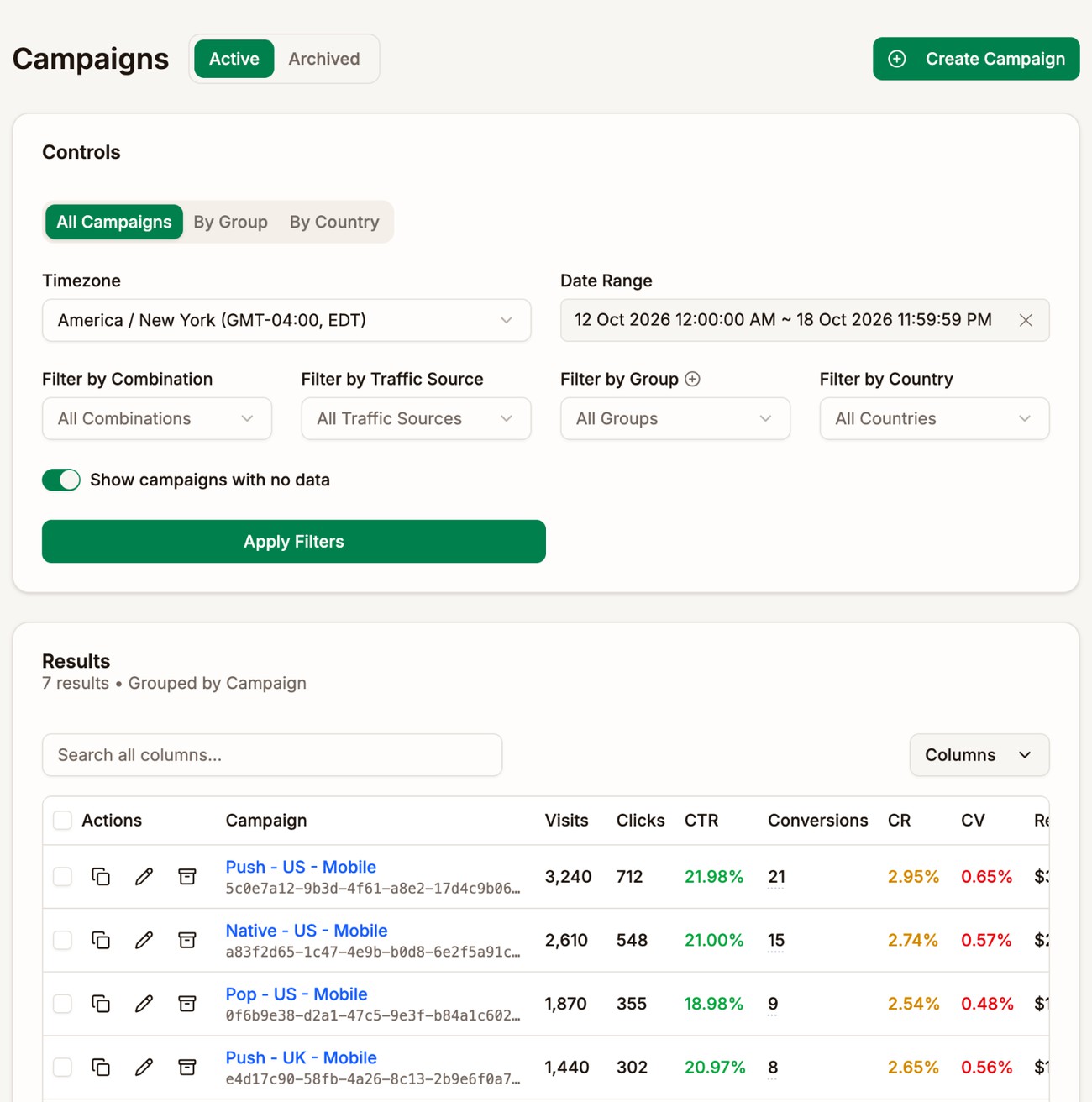
The list shows each campaign's visits, clicks, conversions, revenue, cost, and profit for the date range you pick. For what each column means, see Reading Your Stats.
- All Campaigns lists every campaign. By Group and By Country put them under their group or country, with a total for each. Click a group or country to open it.
- Filter by Combination, Filter by Traffic Source, Filter by Group, and Filter by Country narrow the list. The country filter only shows campaigns that have a Country set.
- Turn off Show campaigns with no data to hide campaigns with no visits in the date range.
Click Apply Filters after changing any of these.
Hover over a campaign's name to copy its name, ID, or URL. The copy icon in a row copies the campaign's ID URL with its traffic source tokens.
Duplicate, archive, or delete
Duplicate makes a copy you can change, which is the fastest way to launch a variation, such as the same campaign on another traffic source. Open the campaign and pick Duplicate Campaign from ⋯, or tick campaigns in the list and click Duplicate. The copy is named after the original with (Copy) at the end and gets its own slug. It keeps the combination, traffic source, group, country, and cost settings. Notes and custom tokens are not copied.
Archive moves a campaign you no longer run to the Archived list. Its stats stay in your reports. Use the archive icon in its row, Archive Campaign on its page, or tick campaigns and click Archive.
To bring a campaign back, open Archived and click the unarchive icon in its row, or Unarchive Campaign on its page.
Delete is only available for archived campaigns. Open Archived and click the trash icon, or pick Delete Campaign on the campaign's page. A deleted campaign's link stops sending visitors to its combination. Visitors who open it go to your Fallback Campaign instead.
When a campaign has nowhere to send a visitor
Sometimes a campaign link can't send a visitor anywhere. Those visitors go to your Fallback Campaign, where they are tracked like any other visit:
- The campaign has been deleted, or the link has a typo, such as an old slug.
- The campaign has no combination.
- Every offer in its combination has reached its conversion cap, or its lander can't be shown, for example because the page was unpublished.
Set the Fallback Campaign in Tracker → Tracker Settings. See Tracker Settings.
For a link that doesn't exist, Proferex needs to know it's yours. Slug links (/l/YOUR-ALIAS/...) always are, and so are links on your own tracking domain or starter domain. A link Proferex can't trace to an account shows a neutral page.
Next step
Copy the campaign URL into your ad at the traffic source, then open it once yourself. Your visit appears in the campaign's numbers within a minute. To record conversions, set up Postbacks.