

 VII
VII
Analytics
Break all your campaigns down by up to two details, filter them, and find what makes money.
This page shows you how to use Tracker → Analytics to answer questions across all your campaigns, such as which spots lose money, which lander wins with each offer, or which hours are worth paying for.
Analytics splits every visit in the date range by up to two details, such as offer and country, and shows the numbers for each group. Filters narrow it down to the visits you care about, such as one traffic source or one country.
Analytics covers every campaign in your account at once. To look inside a single campaign, use the campaign's own page. See Campaign Reports.
The controls
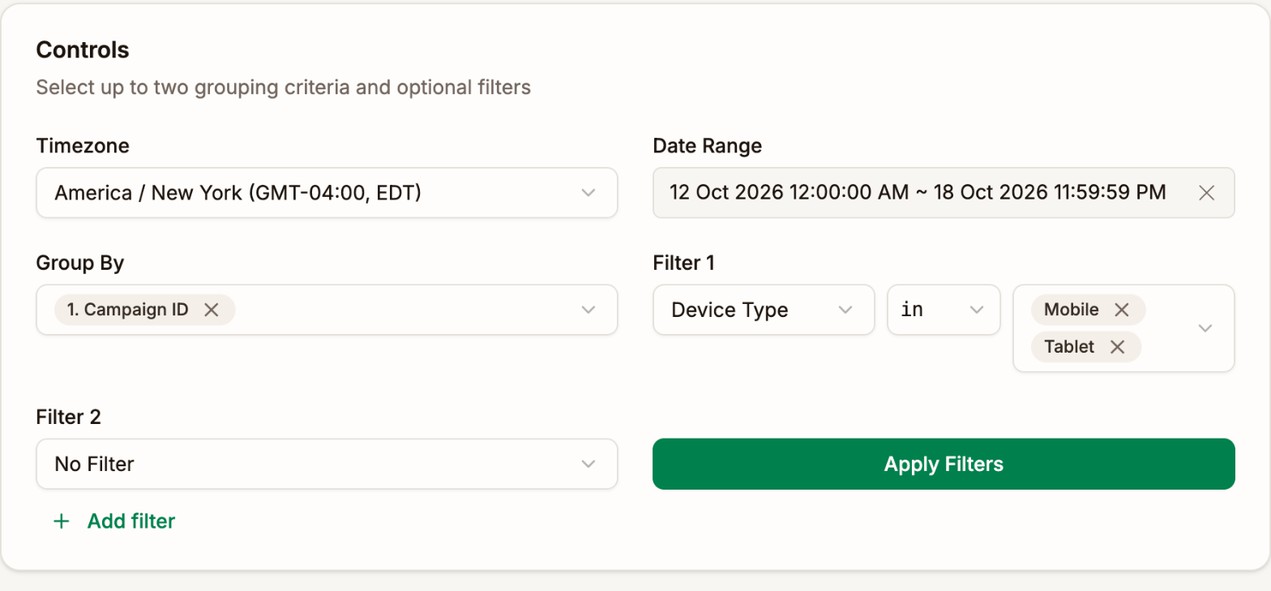
| Control | What it does |
|---|---|
| Timezone | When each day and hour starts. It defaults to New York time and is remembered on your other screens. |
| Date Range | The visits to include. Use a preset, such as Last 7 Days, or set exact start and end times. This Week starts on Sunday. |
| Group By | How to split the rows. Pick up to two. See Group By. |
| Filter 1, Filter 2 | Which visits to include. Click Add filter for up to four. See Filters. |
| Apply Filters | Runs the report. Nothing changes until you click it. |
When you open Analytics, it shows one row of totals for the date range you used last.
Group By
Pick one grouping to get a row for each value, such as a row for each offer. Pick a second grouping to split each of those rows again, such as each offer in each country. With nothing picked, Group By reads All Data and the report shows one row of totals.
The groupings appear as 1. and 2. in the field. Click × on one to remove it. Type in Search fields... to find a grouping fast.
Daily, Hour of Day, and Day of Week work on their own. Once you pick one, you can't add a second grouping, and once you pick another grouping, they leave the list.
| Kind | Grouping | One row for each |
|---|---|---|
| Your setup | Campaign ID | Campaign |
| Campaign Group, Campaign Country | Campaign group, or the country you set on the campaign | |
| Lander ID, Offer ID, Offer Group | Lander, offer, or offer group | |
| Traffic Source ID, Offer Source ID | Traffic source or offer source | |
| Combination ID, Rule ID, Path | Combination, rule, or lander and offer path inside a combination | |
| Your own values | Custom Token 1 to 3 | Value the custom token recorded. See Custom Tokens. |
| V1 to V10 | Value your traffic source passed in that variable. See V1 to V10. | |
| Time | Daily, Hour of Day, Day of Week | Day, hour from 00:00 to 23:00, or weekday |
| Location | Country, Continent, Region, City, Postal Code | Where the visitor was |
| Timezone, Language, Language (Full) | Visitor's timezone and browser language | |
| Device | Device Type, Device, Is Mobile | Mobile, desktop, or tablet, the device model, or a Yes or No for phones and tablets |
| OS, OS Version, Browser, Browser Version | Operating system and browser | |
| Network | ISP, IP, Connection Type | Internet provider, IP address, or Wi-Fi, carrier, or datacenter. See Connection Type. |
| Referrer | Page the visitor came from |
V1 to V10
V1 to V10 hold the values your traffic source fills in on each visit, such as the spot, zone, or site the ad ran on. They are where you find the placements that make or lose money.
If you used a traffic source template, the variables hold these values:
| Variable | TrafficJunky | TrafficStars | ExoClick |
|---|---|---|---|
| V1 | Banner Name | Campaign ID | Campaign ID |
| V2 | Site | Creative ID | Creative ID |
| V3 | Bid Value | Spot ID | Site Name |
| V4 | Spot Name | Spot Name | Site ID |
| V5 | Campaign ID | Site ID | Zone ID |
| V6 | Ad Name | Site Host | Category ID |
| V7 | Ad ID | Category | Country |
| V8 | Bid ID | Keywords | Keyword |
| V9 | Spot ID | Referrer | Tags |
| V10 | Banner ID | Device Type | Language |
If you set up the traffic source yourself, each variable holds whatever you mapped to it. See v1 to v10.
Analytics labels them V1 to V10. A campaign's own Analytics tab shows the names you gave them on the traffic source.
Connection Type
Connection Type splits visits by the kind of network the visitor was on:
| Value | Meaning |
|---|---|
| Wi-Fi | Home or office internet |
| Carrier | Mobile data |
| Datacenter | Cloud servers and VPNs. This is often bot traffic. |
| Unknown | A network Proferex can't label yet |
Filters
A filter keeps only the visits that match it. Each filter has a field, an operator, and a value. Filter 1 and Filter 2 are there from the start. Click Add filter for a third and a fourth, and click × to remove those.
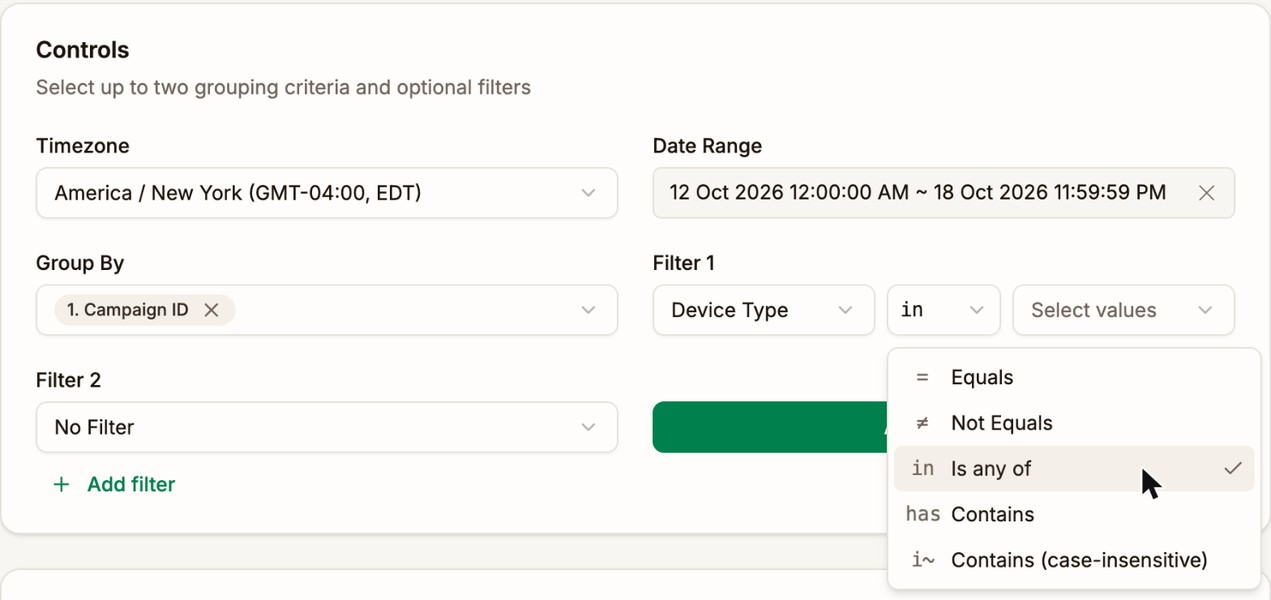
| Operator | Shown as | Keeps visits where the field | Example |
|---|---|---|---|
| Equals | = | Is exactly the value | OS = iOS |
| Not Equals | ≠ | Is anything but the value | Country ≠ US |
| Is any of | in | Matches one of several values | Device Type in Mobile, Tablet |
| Contains | has | Includes the text, with the same capitals | V4 has Footer |
| Contains (case-insensitive) | i~ | Includes the text, in any capitals | Campaign Name i~ us - mobile |
How values work:
- For fields with a known list, such as Country, Continent, Device Type, OS, Browser, Language, Timezone, Connection Type, and Is Mobile, Is any of gives you a list to pick from. Pick as many as you need.
- Campaign Group, Offer Group, and Campaign Country always use Is any of with a list.
- For every other field, type the value. With Is any of, separate the values with commas, such as
2481930, 2477382. - Country, device, OS, browser, language, timezone, and connection values match in any capitals.
You can filter by any field you can group by, except Daily, Hour of Day, and Day of Week. You can also filter by name: Campaign Name, Lander Name, Offer Name, Traffic Source Name, Offer Source Name, Combination Name, and Rule Name. Name filters start on Contains (case-insensitive), so part of a name is enough.
A visit must match every filter to be counted. A filter with no value is ignored.
A filter doesn't add a grouping. To see a row for each value, add the field to Group By as well.
Read the results
The line under Results says how many rows there are, what they are grouped by, and which filters apply. It always describes the report you last ran, so after changing the controls, click Apply Filters to update it. If no visits match, it says No results found.
- Total is the last row. It adds up every row and works out CTR, CR, ROI, and the rest from those totals.
- Type in Search all columns... to show only the rows that match, such as one spot ID. Total then adds up only those rows.
- Click a column heading to sort by it, and click again to reverse the order.
- Columns hides columns for this visit. To change the columns for good, see Table Columns.
- Rows per page shows 10, 25, 50, or 100 rows at a time.
Daily, Hour of Day, and Day of Week list every day or hour in the range, including those with no visits, so gaps show as rows of zeros.
Names and the hover card
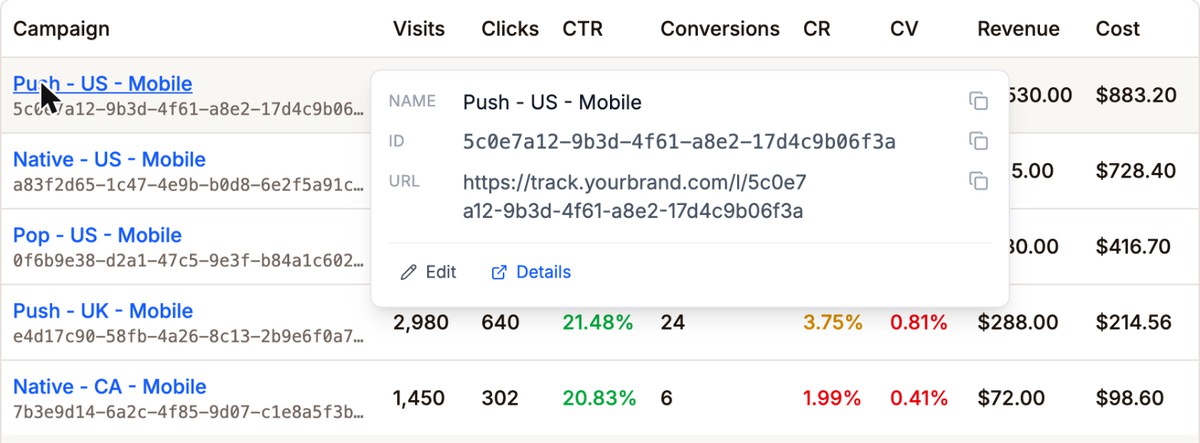
Campaigns, landers, offers, traffic sources, combinations, and offer sources show their name in blue with their ID underneath. Click a name to open its page. See Detail Pages.
Hover over a name to copy its name, ID, or URL. Edit opens its settings in place, and Details opens its page in a new tab.
Special values
| You see | Meaning |
|---|---|
| - | The visit had no value for this field, such as a V your traffic source didn't fill in, or a visit no rule matched |
| No Offer | Visits that never went on to an offer, such as visitors who left the lander, or conversions recorded on the lander |
| (Unassigned) | Campaigns or offers with no group |
| A faded name with (deleted) | Something you deleted. Its past numbers stay in your reports. |
| Deleted / Missing | Visits whose campaign, lander, or offer no longer exists, added up in one row |
Examples
Each example names the settings to use, then how to read the result and what to change. They follow the order to optimize in: offer, ads, lander, targeting, and hours last. See Optimization.
Find which offer pays in which country
- Group By: Offer ID, then Country
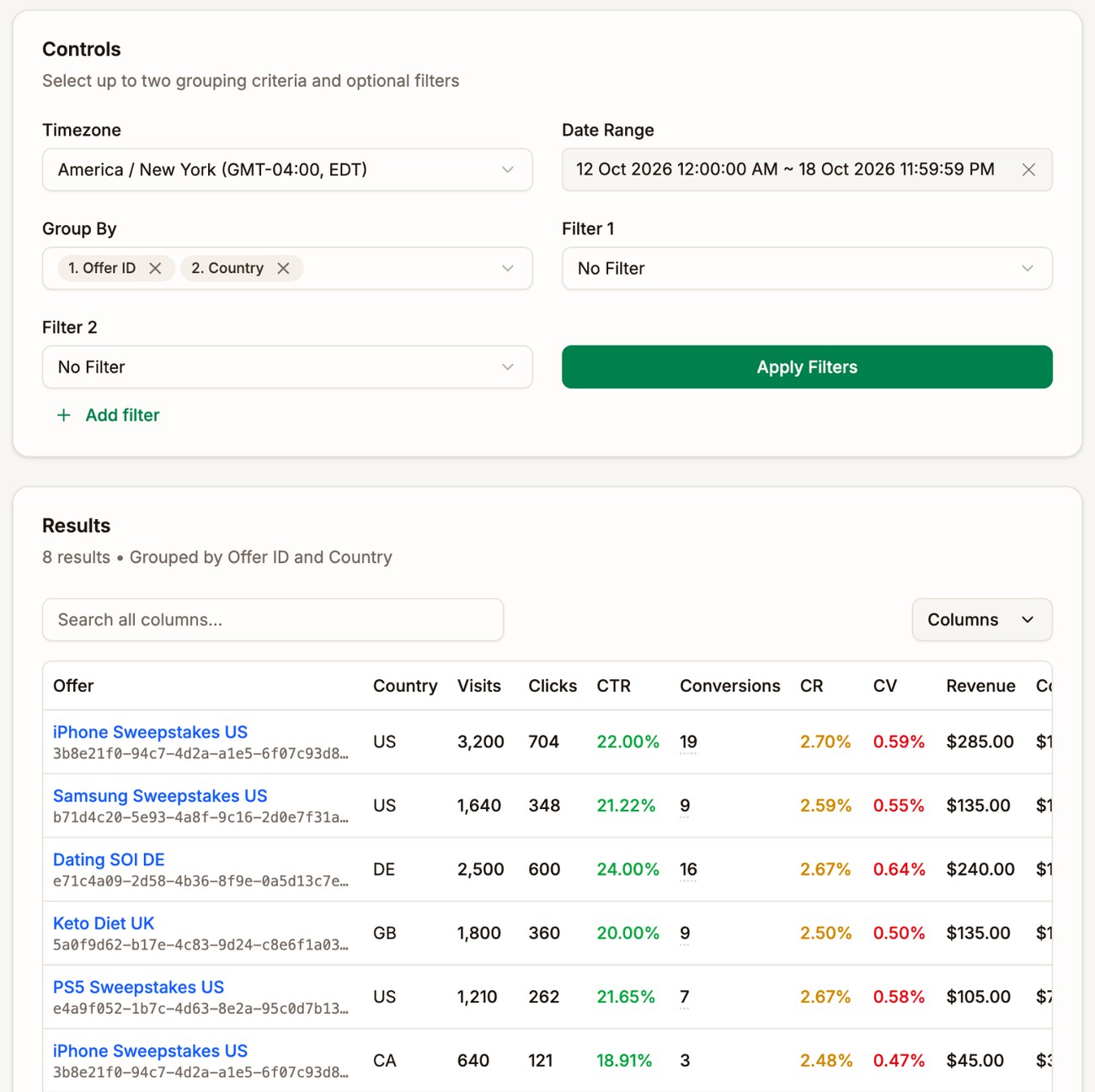
The offer decides more than anything else whether a campaign can make money, and an offer that pays in one country can lose in another. Look for the same offer on several rows with different ROI, and use it to pick the offer for each country.
Run one campaign per country, each with the offer that pays best there. Countries perform too differently to share one campaign's ads, bid, and placements. See Optimization.
Find the ads that convert
- Group By: V2, the TrafficStars or ExoClick creative ID. On TrafficJunky, use V1, the banner name.
- Filter 1: Campaign Name i~
Push - US - Mobile
| V2 | Visits | CTR | CR | EPV | ROI |
|---|---|---|---|---|---|
| 88412 | 3,210 | 28.41% | 5.37% | $0.23 | 98.30% |
| 88419 | 2,460 | 24.11% | 4.89% | $0.18 | 71.20% |
| 88433 | 2,890 | 31.21% | 0.89% | $0.04 | -64.10% |
Ad 88433 sends the most visitors through the lander, but almost none of them convert, so its message doesn't match the offer. Pause it at your traffic source, and test new ads built on what 88412 promises. Ads are one of the strongest levers you have, so keep a test running against the winner.
See which lander wins with each offer
- Group By: Lander ID, then Offer ID
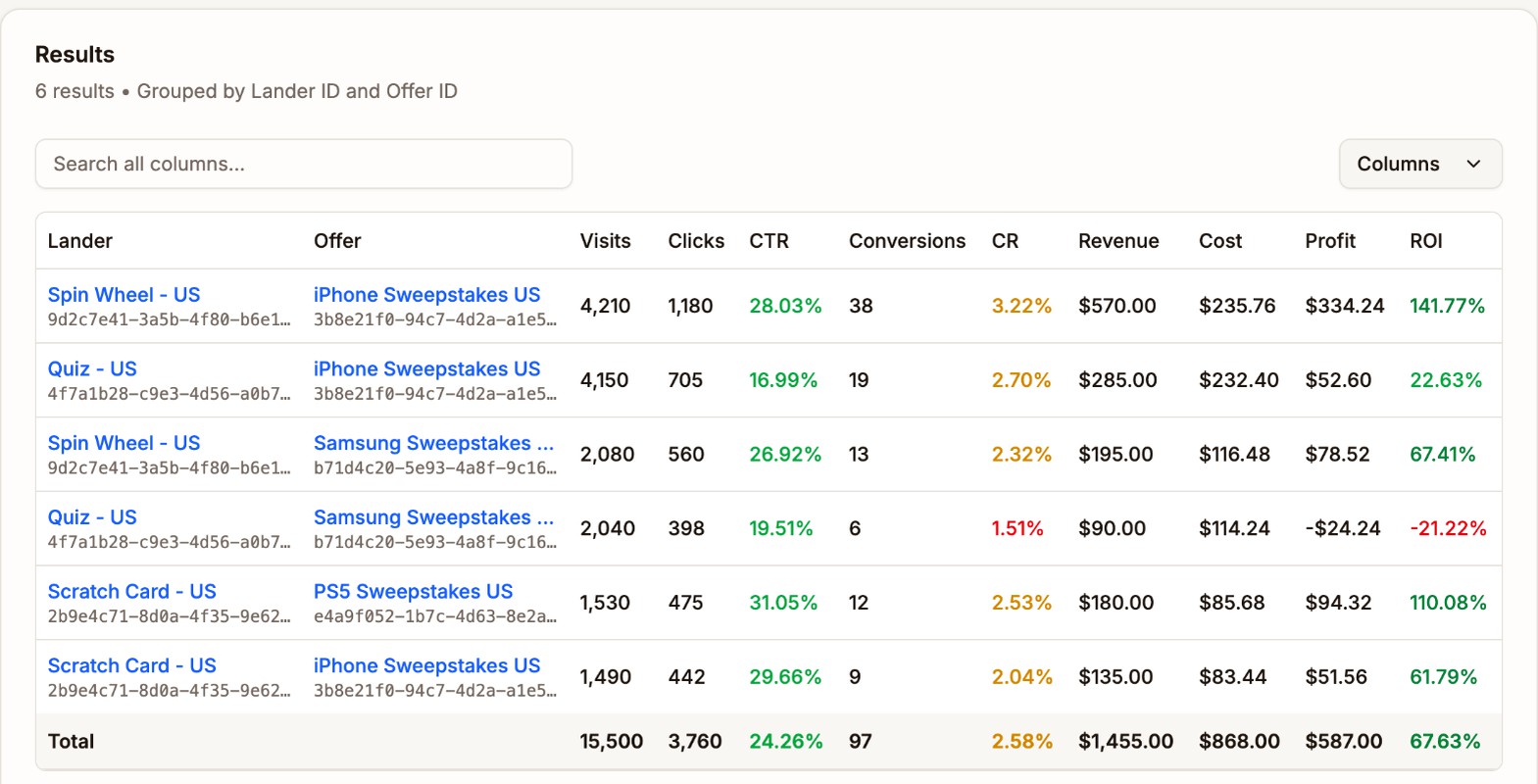
Spin Wheel - US sends 28% of its visitors on to iPhone Sweepstakes US, and Quiz - US sends 17% to the same offer. The conversion rates are close, so the extra clicks are what makes Spin Wheel's 141.77% ROI against Quiz's 22.63%. With Samsung Sweepstakes US, Quiz loses money.
To act on it, open the combination and give Spin Wheel - US more weight, or remove the Quiz and Samsung path. See Weight.
Find the spots that lose money
- Group By: V9, the TrafficJunky spot ID
- Filter 1: Traffic Source Name i~
TrafficJunky - Filter 2: Country in United States (US)
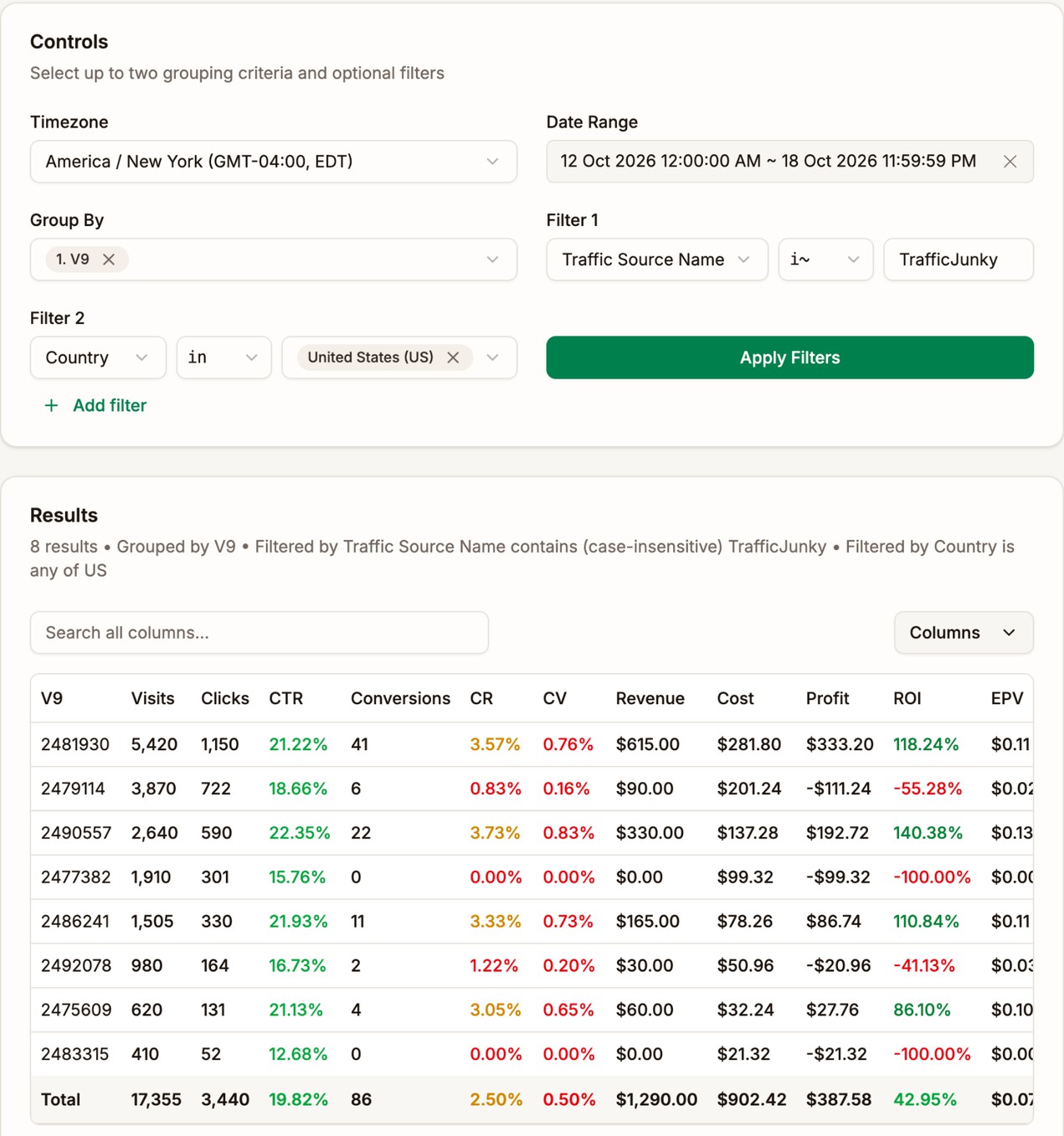
Read it from the biggest spender down. With a $15 payout:
- 2481930 spent $281.80 and made $615.00, a 118% ROI. Keep it, and consider raising the bid on it.
- 2479114 spent $201.24 for six conversions, a 55% loss. It has had enough traffic to judge.
- 2477382 spent $99.32, more than six payouts, with no conversions. Block it.
- 2492078 spent $50.96 for two conversions, a 41% loss. Block it too.
- 2483315 spent $21.32 with no conversions. That is less than two payouts, so give it a little longer.
Blocking the three losing spots that have spent enough would have saved $351.52 of the $902.42 spent. It would have cost eight conversions, and turned a 43% ROI into a 112% ROI. Block spots at your traffic source. On TrafficJunky, the campaign's API window has a Sources button that opens the campaign's spot list. See The API window.
Compare phones by operating system
- Group By: OS
- Filter 1: Device Type in Mobile, Tablet
| OS | Visits | CTR | CR | Profit | ROI |
|---|---|---|---|---|---|
| Android | 4,860 | 23.40% | 5.10% | $281.40 | 96.50% |
| iOS | 2,120 | 18.90% | 2.70% | -$34.20 | -13.40% |
The same offer that pays on Android loses money on iOS. Target Android only at your traffic source, or send iOS visitors to another offer with a combination rule on OS.
Compare Wi-Fi with mobile data
- Group By: Connection Type
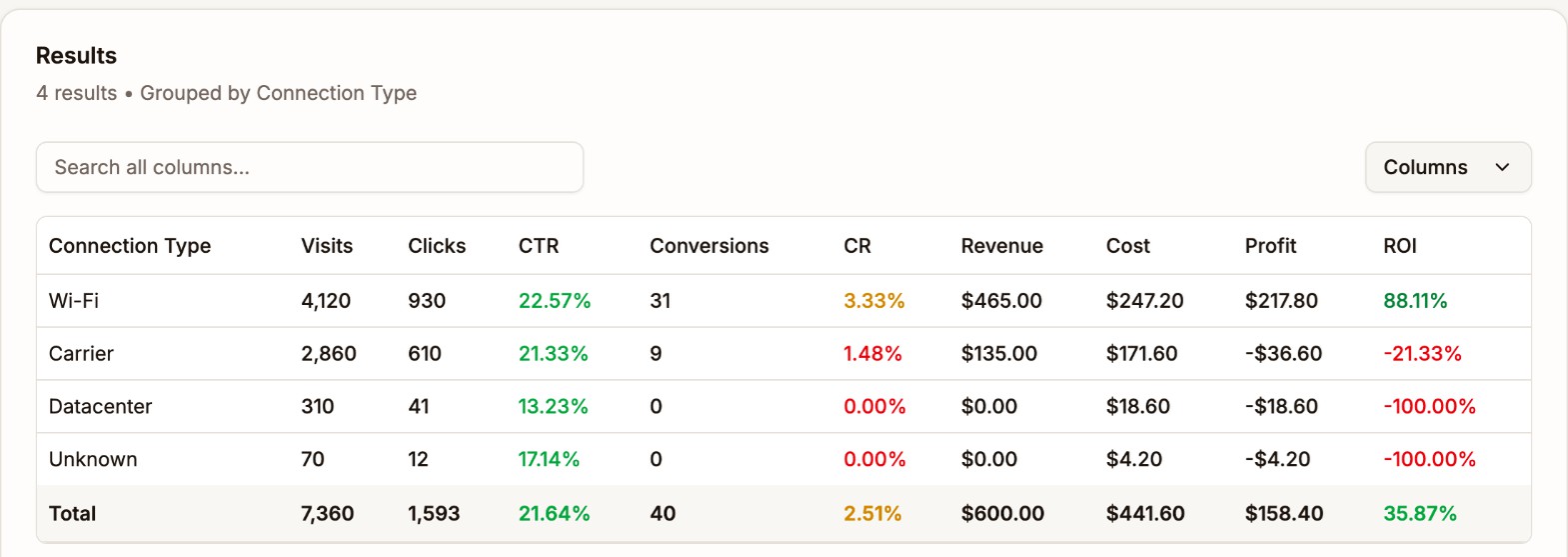
Wi-Fi visitors convert at 3.33% and carrier visitors at 1.48%. Wi-Fi makes an 88% ROI and carrier loses 21%. Most traffic sources let you target Wi-Fi and carrier traffic separately, so split the campaign in two at the traffic source, or stop buying carrier traffic for this offer.
The 310 Datacenter visits cost $18.60 and never converted. Group by ISP with a Connection Type filter set to Datacenter to see which networks they came from, and block them at your traffic source if it allows.
Find the hours that lose money
- Group By: Hour of Day
- Filter 1: Campaign Name i~
Push - US - Mobile
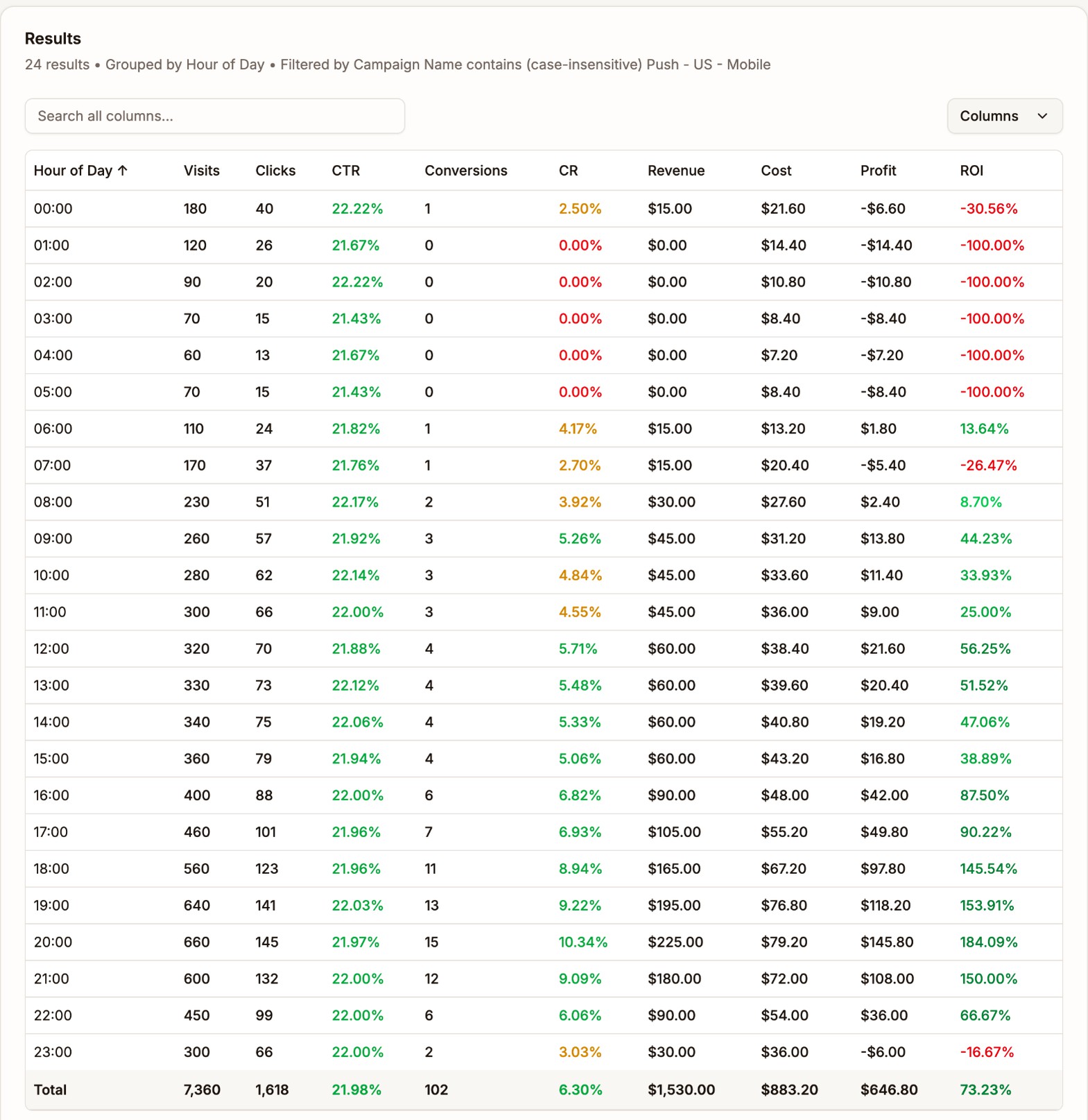
From 23:00 to 07:00 the campaign loses money in every hour but one, $67.20 over the week. From 18:00 to 21:00 it makes 145% to 184% ROI.
Stop buying the night hours in the campaign's schedule at your traffic source. Do this last, after the offer, ads, lander, targeting, and bid are right. Cutting hours trims a campaign that already works, but it rarely turns a losing campaign around on its own.
Set the Timezone to the one your traffic source schedules in, so the hours line up with the hours you pick there.
Spot a campaign going wrong
- Group By: Daily
- Filter 1: Campaign Name i~
Native - US - Mobile
| Day | Visits | CR | Profit | ROI |
|---|---|---|---|---|
| Oct 18, 2026 | 1,020 | 1.90% | -$22.40 | -14.30% |
| Oct 17, 2026 | 1,080 | 2.10% | -$12.60 | -7.80% |
| Oct 16, 2026 | 990 | 4.80% | $64.80 | 52.90% |
| Oct 15, 2026 | 1,010 | 5.10% | $72.30 | 58.60% |
The conversion rate halved on Oct 17 while visits stayed the same. That points at the offer or the postback, not the traffic. Group the same days by Offer ID to see whether one offer dropped, and check your affiliate network's stats for the same days. If they show conversions Proferex doesn't, see Why Numbers Differ.
Add up a group of campaigns
- Group By: Campaign Group
If you put campaigns into groups, such as Push, Native, and Pop, one row shows each group's total. Add Campaign Country as the second grouping to see each format in each market.
Next step
Open one of your campaigns and break it down on its own page. See Campaign Reports.