

 VII
VII
Reading Your Stats
Find the numbers that matter for your campaigns, offers, landers, and sources.
This page shows you where to find your numbers in Proferex, and what each one means.
Visits, clicks, and conversions reach your reports within a minute. They are not real time.
The Dashboard
Dashboard, at the top of the sidebar, shows how your whole account is doing for the date range you pick.
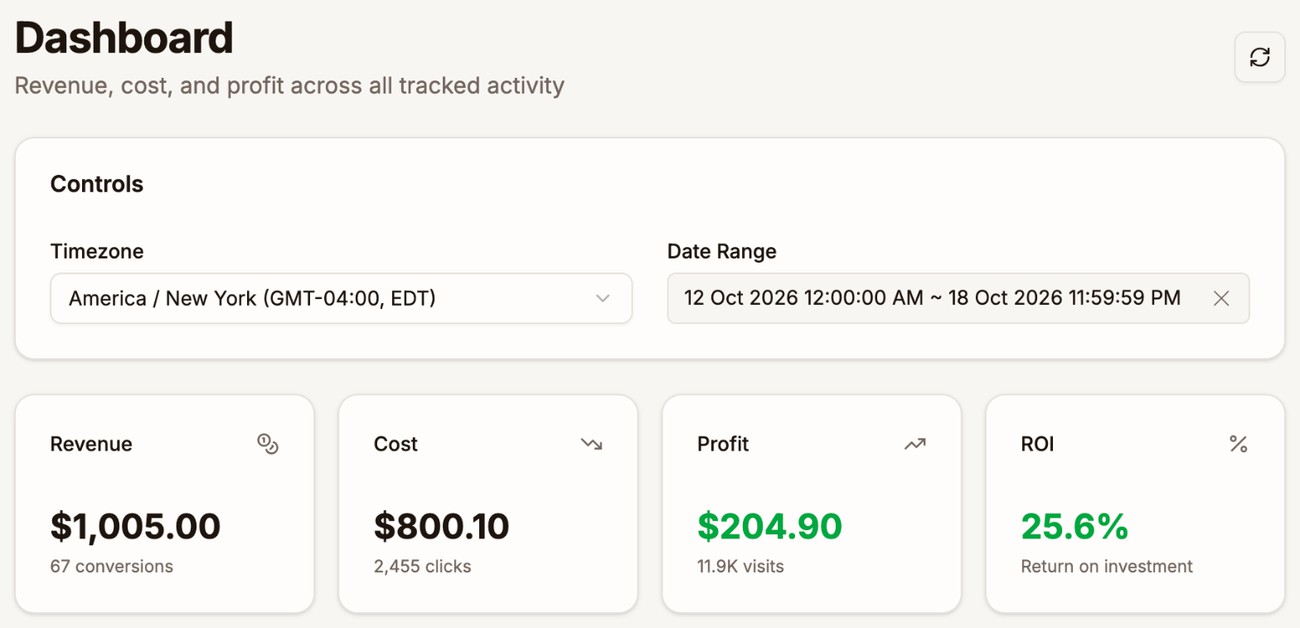
- Revenue, Cost, Profit, and ROI for the date range, with your conversions, clicks, and visits underneath.
- All Activity - Daily Revenue charts revenue, cost, and profit for each day. Click Revenue, Cost, or Profit to hide or show it.
- Top 5 Offers, Top 5 Landers, Top 5 Offer Sources, and Top 5 Traffic Sources list what earned the most. View All opens the full list.
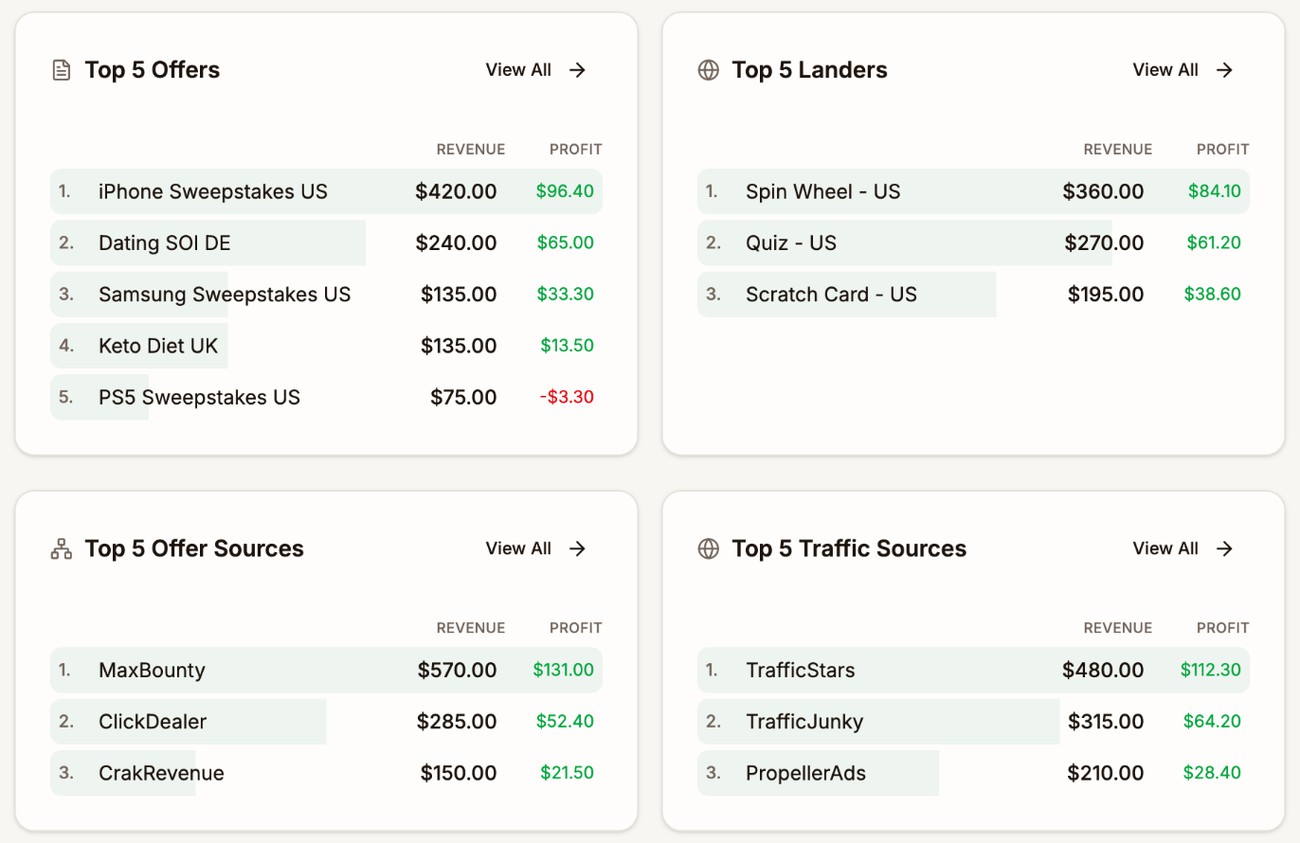
The Dashboard updates as soon as you change the timezone or date range.
Where else to find your numbers
| Screen | How to open it | What it shows |
|---|---|---|
| Your lists | Tracker → Campaigns, Landers, Offers, Combinations, Traffic Sources, or Offer Sources | One row of numbers for each item. See Detail Pages. |
| A campaign's own page | Click a campaign's name | The campaign by day, by lander and offer, by rule, by placement, and by hour. See Campaign Reports. |
| A detail page | Click the name of a lander, offer, combination, traffic source, or offer source | That item across all your campaigns. See Detail Pages. |
| Analytics | Tracker → Analytics | All your campaigns, broken down and filtered the way you choose. See Analytics. |
Pick a date range and timezone
Every screen with numbers has Timezone and Date Range at the top.
- Timezone sets when each day starts and ends. If you have never picked one, Proferex uses New York time.
- Date Range has presets, Today, Yesterday, This Week, Last 7 Days, Last 30 Days, This Month, and Last Month, or you can set exact start and end times.
Proferex remembers the timezone and date range you last used, and uses them on your other screens too. On most screens, click Apply Filters after changing them.
What the metrics mean
| Metric | Meaning |
|---|---|
| Visits | Times someone opened your campaign link. |
| Clicks | Times a visitor clicked through from your lander to an offer. |
| CTR | Clicks divided by visits: how well your landers send people on. |
| Conversions | Sales or leads your offer sources reported. Upsells and rebills add revenue but are not counted here. See Postbacks. |
| CR | Conversions divided by clicks. For direct offers, which have no clicks, conversions divided by visits. |
| CV | Conversions divided by visits. |
| Revenue | Tracked revenue run through Proferex, from the payout on each conversion. |
| Cost | What you paid for the visits. See Costs. |
| Profit | Revenue minus cost. |
| ROI | Profit divided by cost, as a percentage. |
| EPV | Revenue per visit. |
| EPC | Revenue per click. |
| EPA | Revenue per conversion. |
| CPV | Cost per visit. |
| CPC | Cost per click. |
| CPA | Cost per conversion. |
When the number to divide by is zero, the result shows as zero.
Colors
CTR, CR, CV, and ROI are colored, so you can spot good and bad rows at a glance.
| Metric | Green | Yellow | Red |
|---|---|---|---|
| CTR | 10% and above | 5% to 10% | Below 5% |
| CR | 5% and above | 2% to 5% | Below 2% |
| CV | 3% and above | 1% to 3% | Below 1% |
ROI is green when it is positive, darker the higher it is, and red when it is negative.
Money and currency
Revenue and cost are shown in your display currency, which you choose on your account page. A payout or cost in another currency is converted using the exchange rate for that day. See Currency.
If a table says some conversions or cost records are awaiting exchange rates, those amounts are left out until the rate arrives. Proferex adds them automatically.
Next step
To break your numbers down by offer, country, device, or anything else, see Analytics.