

 VI
VI
Agent Chat
Ask about your performance and manage your tracker by chatting with Proferex.
This page shows you how to use the Tracker Agent: a chat assistant that answers questions about how your campaigns perform, and sets things up in your tracker when you approve it.
Go to Tracker → Agent. The Tracker Agent needs an active plan.
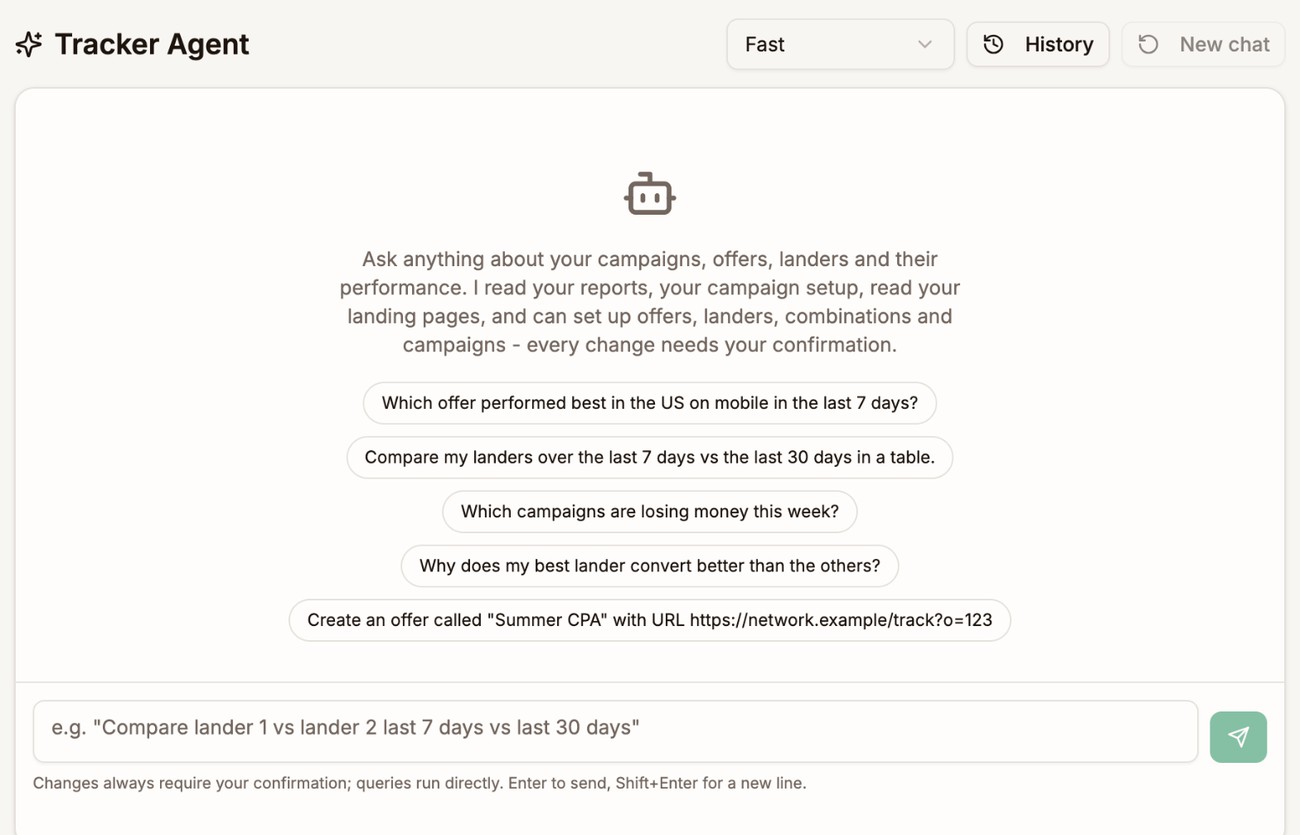
What the Tracker Agent can answer
The Tracker Agent reads your tracked stats and your Tracker setup. You can ask it about:
- Performance. Visits, clicks, conversions, cost, tracked revenue run through Proferex, and profit, broken down by campaign, offer, lander, traffic source, country, device, day, and anything else you can group a report by.
- Comparisons. One lander against another, or the last 7 days against the last 30 days.
- Your setup. How a campaign or combination is configured, which offers and landers you have, and a campaign's custom tokens.
- Your pages. Your Published Pages and your blog articles, so it can compare how they perform.
- This manual. It can look up how Proferex works, and read web pages you link to.
Stats reach the Tracker Agent within a minute, the same as your reports.
What the Tracker Agent can change
The Tracker Agent can create, update and duplicate Tracker items for you:
| Item | What it can do |
|---|---|
| Offers | Create, update, duplicate |
| Landers | Create, update name, notes, redirect mode and group, duplicate |
| Published Pages | Move pages between groups |
| Combinations | Create, update rotation paths and rules, duplicate |
| Campaigns | Create, update, duplicate, change status |
| Offer sources | Create, duplicate |
| Traffic sources | Create, update, duplicate |
| Custom tokens | Add, edit and delete token definitions and value transformations |
Every change needs your approval
The Tracker Agent never changes anything on its own. When it wants to make a change, a card marked needs your approval appears in the chat with the details of the change.
- Click Confirm to make the change.
- Click Cancel to drop it. The Tracker Agent is told you cancelled and carries on from there.
The chat then shows Confirmed or Cancelled with what was changed.
Read the card before you confirm. It shows exactly what will be created or changed.
Example prompts
Type your question in the message box, or pick one of the suggestions shown in a new chat.
Which offer performed best in the US on mobile in the last 7 days?Compare my landers over the last 7 days vs the last 30 days in a table.Which campaigns are losing money this week?Create an offer called "Summer CPA" with URL https://network.example/track?o=123Name the date range and the thing you want compared. Specific questions get specific answers.
Fast and Deep modes
A selector at the top of the chat switches between two modes:
- Fast answers quickly. Use it for direct questions and routine changes.
- Deep takes longer and reasons more carefully. Use it for questions such as why one lander converts better than another. It uses more AI credits.
Chat history
Your conversations are saved.
- Click History to open a past conversation, rename it or delete it.
- Click New chat to start a fresh conversation.
AI credits
Each reply uses AI credits from your plan. The number of credits used shows under each reply. If you run out, the Tracker Agent tells you, and you can chat again after your monthly refill. A change you already confirmed still goes through. See Billing.
Limits
- API keys. The Tracker Agent cannot set traffic source API keys. Add them in the Traffic Sources screen.
- Lander type and page. The Tracker Agent cannot change a lander's type or the page or URL it points to. Change those on the lander itself.
- Deleting items. The Tracker Agent does not delete offers, landers, combinations, campaigns or sources. Custom token definitions and transformations are the exception.
Next step
Open Tracker → Agent and ask which of your campaigns made the most profit in the last 7 days.