

 VIII
VIII
Articles
Write articles, link them to your offer, and publish or schedule them.
This page shows you how to write an article for your blog, link it to your offer, and publish it now or on a date you choose.
Your articles
Go to Blog → Articles to see your articles. If you have more than one blog, each blog has its own tab.
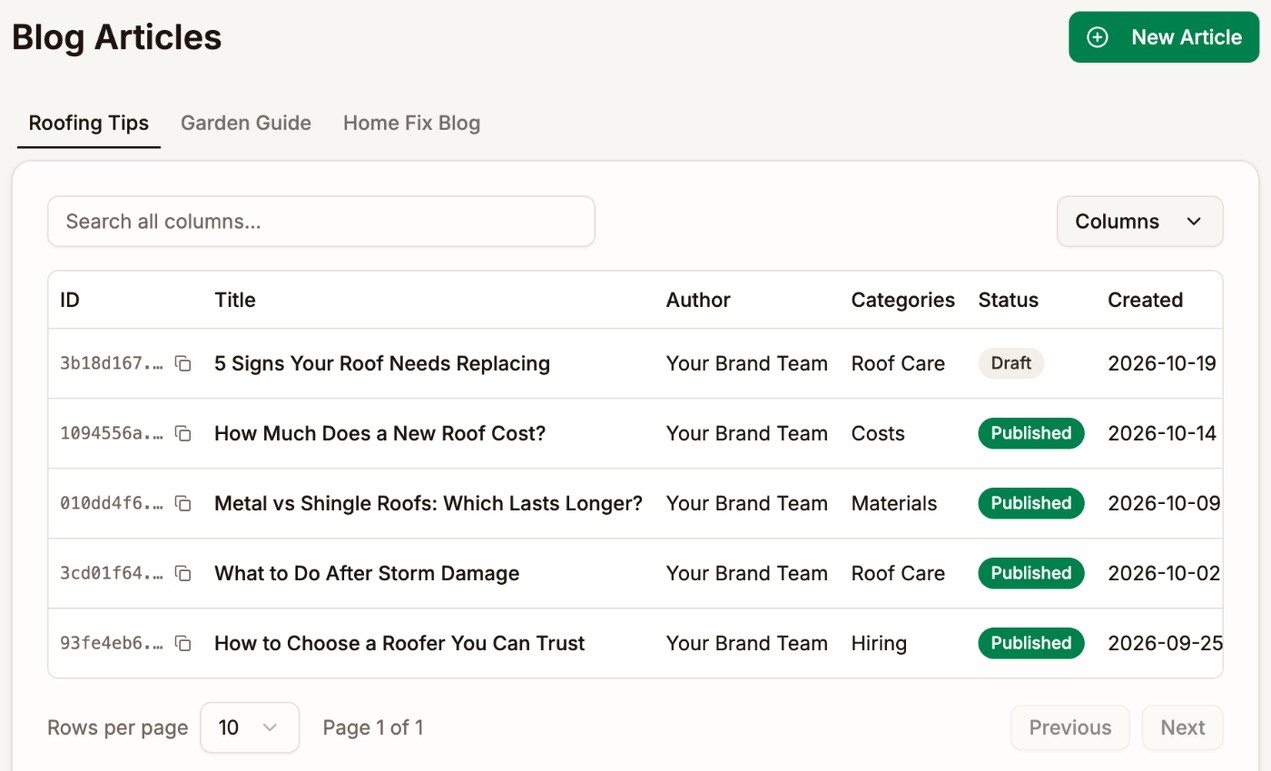
Each article shows as Draft or Published. An article scheduled for a future date also shows as Published. Readers see it from its publication date.
- Type in Search all columns... to find an article by any of its details.
- Click a column heading to sort by it. Click again to reverse the order.
- Use Columns to show or hide columns, and Rows per page to show more articles at once.
- Open the menu on an article's row for Edit, View Article, and Delete. View Article appears once the article is published and the blog has a working domain.
Start an article
- Go to Blog → Add New Article, or click New Article in Blog → Articles.
- If you have more than one blog, pick it under Blog in the right-hand column. You can't move the article to another blog later.
- Type the title in the Article Title... field at the top.
- Write the article in the editor.
- Click Save Draft.
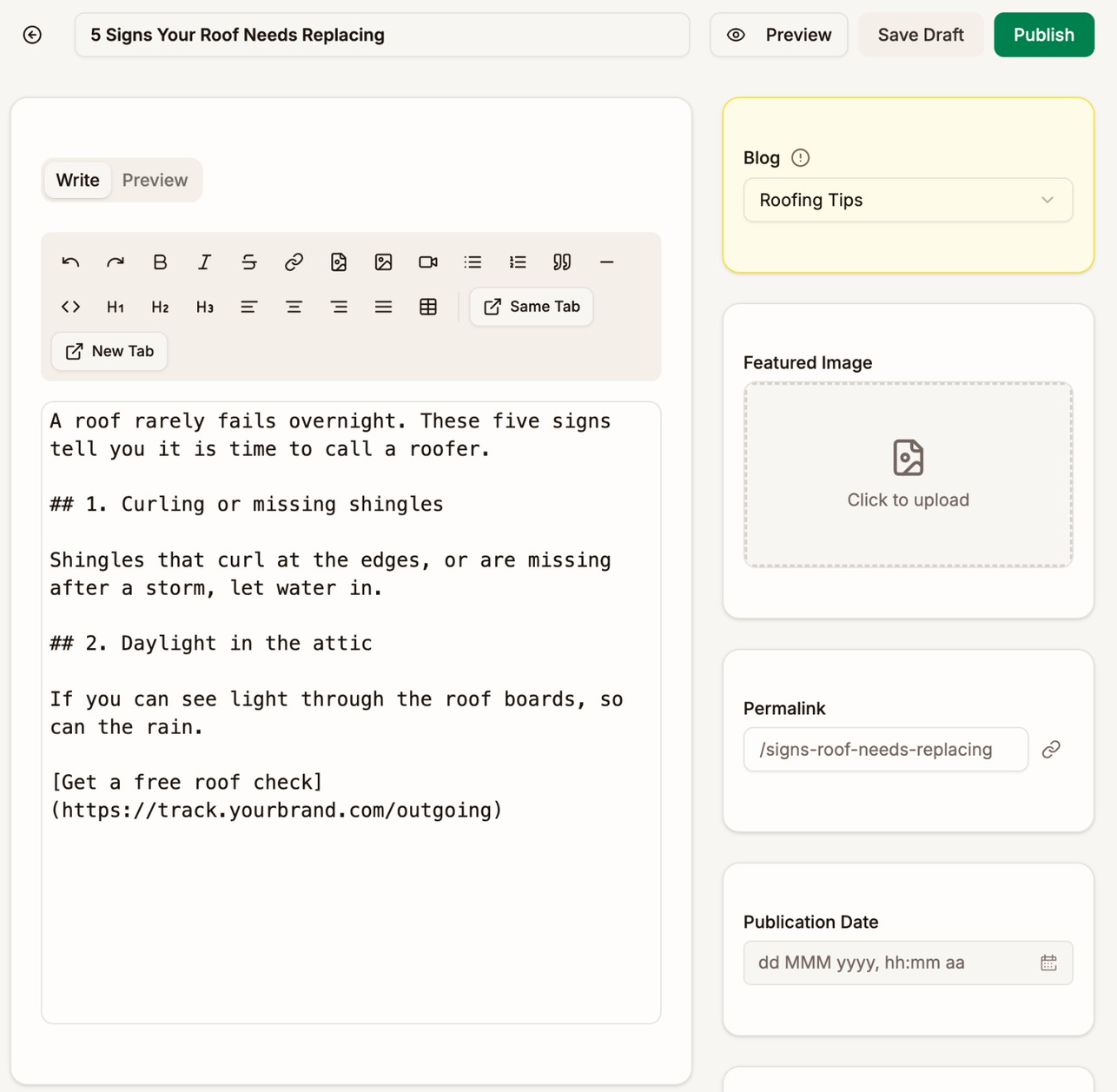
An article needs a title and a blog before it can be saved. After the first save, the editor stays open on the draft.
The editor doesn't save on its own. Click Save Draft, or Update once the article is live, before you leave the page.
Write the body
The editor has two tabs. Write is where you type. Preview shows how the article will look. The Preview button at the top hides the editor and shows the whole article with its title. Click Edit to go back.
The body is written in Markdown, a simple way to format text. You can type it yourself or use the toolbar.
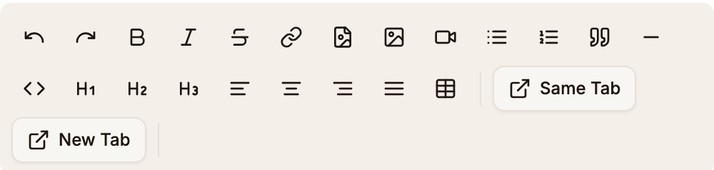
Hover over a button to see its name. If you select text first, most buttons format the selected text. Otherwise they insert an example you can type over.
| Button | What it adds |
|---|---|
| Bold, Italic, Strikethrough | Text styles |
| Link | A link, [Link text](https://). Replace both parts. |
| Image | An image, . See Add images. |
| Custom Image | An image you can size and center |
| Video | An embedded YouTube or Vimeo video. Paste the video's address in place of the example. |
| Bullet List, Numbered List | A list. Select several lines first to turn each line into an item. |
| Blockquote | A quote |
| Horizontal Line | A divider line |
| Code Block | A block of code |
| H1, H2, H3 | Headings. Use H2 for the sections of an article. The title is already the main heading. |
| Align Left, Align Center, Align Right, Align Justify | Text alignment |
| Table | A table. Pick its size from the grid. If you select text first, rows of text separated by commas or tabs become a table. |
| Same Tab, New Tab | A link to your offer. See Link to your offer. |
| Undo, Redo | Undo or redo your last change |
Press Ctrl+F, or Cmd+F on a Mac, to search the article text.
What you can't add
For your readers' safety, articles can't contain scripts, embedded frames, or forms. If the body contains something that can't be shown, a red message above the editor says what to fix, and the save buttons are disabled until you fix it. The message names the problem, for example a tag that isn't allowed or a link that doesn't point to a web address.
Links can point to a web address, an email address, a phone number, or a page on your blog.
Link to your offer
To send readers to your offer and track the click, select the text for your call to action and click Same Tab or New Tab in the toolbar. The editor turns the text into a link to /outgoing on your tracking domain:
<a href="https://track.yourbrand.com/outgoing" target="_blank" rel="noopener noreferrer">Get a free roof check</a>Same Tab opens the offer in place of the article. New Tab opens it in a new tab, so the reader keeps your article open.
To track these clicks, use the article in a campaign as a Blog lander. See Landers and Offer Redirect.
Add images
Upload your images first, in Blog → Media Library. See Media Library.
To place an image in the body:
- In Blog → Media Library, hover over the image and click Copy URL.
- In the editor, click Image in the toolbar.
- Replace
https://with the address you copied, andAlt textwith a short description of the image.
The description helps readers who can't see the image, and helps search engines understand it.
Featured image
The Featured Image is the picture on the article's card on your home page, category pages, and author page. It is also the picture shown when someone shares the article.
Click Click to upload under Featured Image. The Media Manager opens. Hover over an image on the Media Library tab and click Select, or add a new one on the Upload tab.
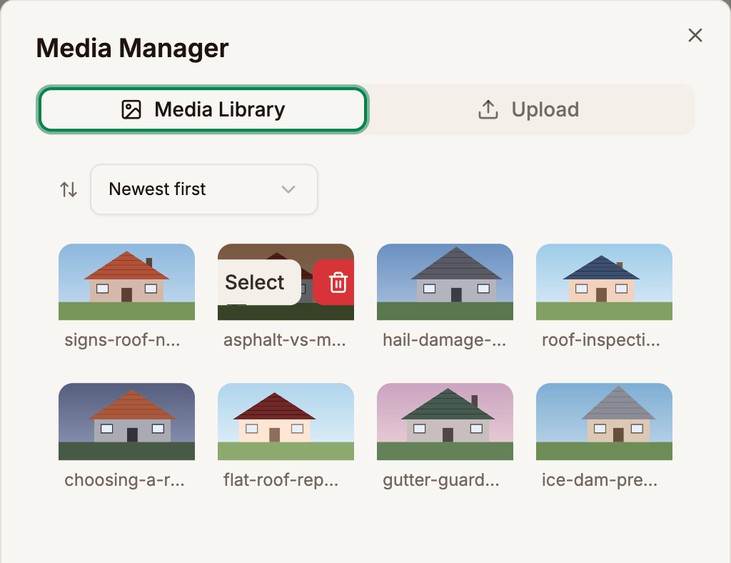
The featured image isn't repeated at the top of the article. To show a picture inside the article, add it to the body.
Article settings
The right-hand column holds the rest of the article's settings.
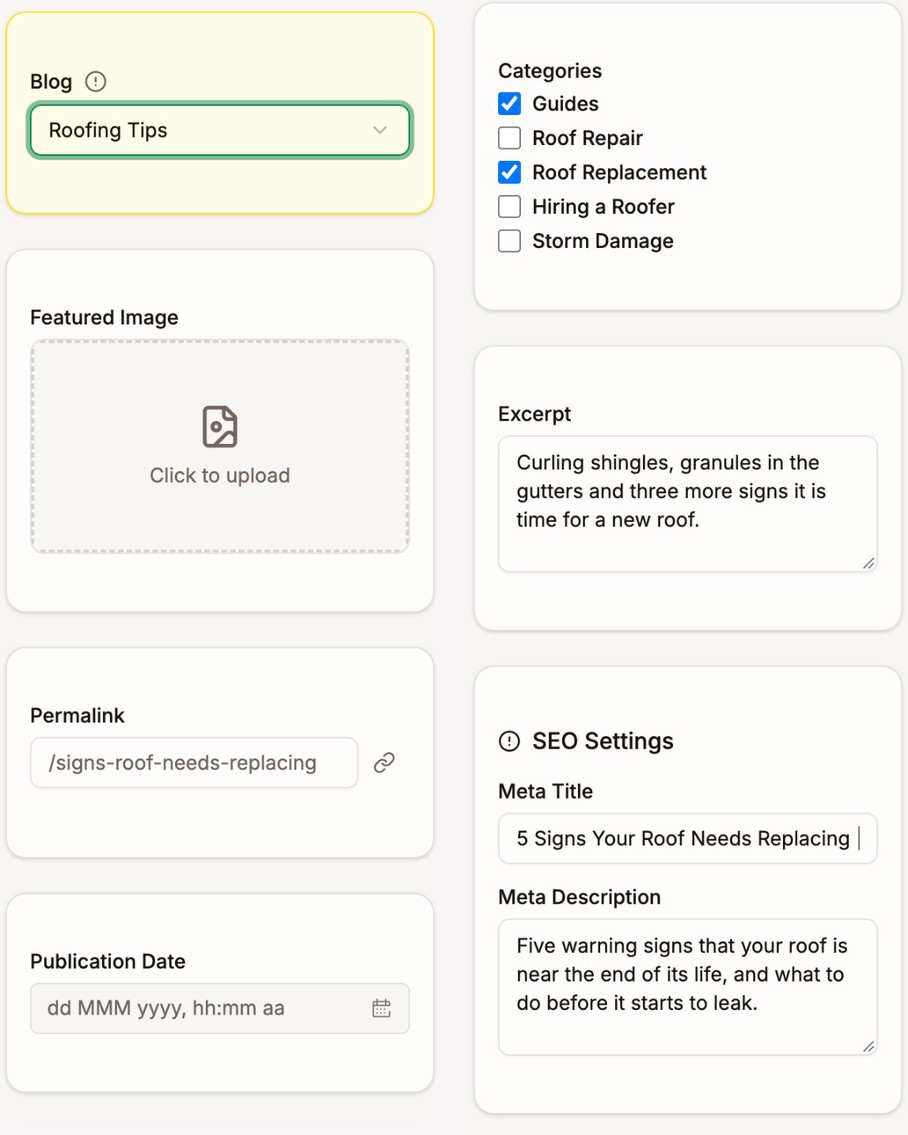
| Setting | What it does |
|---|---|
| Blog | The blog the article belongs to. Shown only if you have more than one blog. |
| Featured Image | The picture on the article's card and when it is shared |
| Permalink | The end of the article's address, such as /signs-roof-needs-replacing. If you leave it empty, it is made from the title when you save. Click the link icon to make it from the title now. |
| Publication Date | The date shown on the article. A future date schedules it. See Publish an article. |
| Categories | The categories the article belongs to. Tick as many as apply. See Categories. |
| Excerpt | A short summary on the article's card. Search engines show it too, unless you write a Meta Description. |
| Meta Title | The title search engines show. It copies the article title as you type, until you change it yourself. |
| Meta Description | The description search engines show. Aim for 150 to 160 characters. |
A permalink can only use lowercase letters, numbers, and hyphens. Proferex turns anything else into a hyphen as you type. A few words are kept for your blog's own pages, such as articles, categories, authors, privacy-policy, and terms-of-service. An article and a page on the same blog can't share a permalink.
Publish an article
Click Publish at the top of the editor. The article goes live on your blog and its status changes to Published. Readers see it within a minute.
Once it is live, the buttons read Unpublish and Update. Click Update to save your changes to the live article.
If you leave Publication Date empty, the article is dated the moment you publish it. You can also pick a date in the past, for example for an article you wrote earlier.
Schedule an article
- Set Publication Date to a date and time in the future.
- The Publish button changes to Schedule. Click it.
The article goes live at that time. Until then, the permalink card shows Scheduled for the date, and the buttons read Unpublish and Save.
To open the live article, click View published post under the permalink, or View Article in the article's row menu. Readers can only reach the article once the blog has a working domain.
Unpublish or delete
To take an article offline and keep it as a draft, open it, click Unpublish, and confirm. The article's link stops working and its status changes back to Draft. Unpublishing a scheduled article stops it from going live.
To remove an article for good, open the menu on its row in Blog → Articles, click Delete, and confirm. Deleting can't be undone.
You can't delete an article that a lander still uses. The confirmation lists the landers. Delete them, or point them at another article, first.
Next step
Add pages such as About, and write your privacy policy. See Pages.