

 VIII
VIII
Blog Domain
Serve your blog on your own domain.
This page shows you how to connect a domain to your blog: the address readers use to reach it, such as blog.yourdomain.com. A blog has no public address until you connect one. Each article lives at your blog domain followed by its permalink, such as blog.yourdomain.com/my-first-article.
To manage a blog's domains, go to Blog → Blogs, open the menu on the blog's row and click Domains.
Pick a domain
You can use a subdomain such as blog.yourdomain.com or a root domain such as yourdomain.com. We recommend a subdomain. It keeps the blog separate from your main website, and every DNS provider supports the record it needs.
A root domain also works, but most DNS providers do not allow a CNAME record on the root. You need a provider that supports CNAME flattening, ALIAS or ANAME records.
Add your domain
- On the Domains page, type your domain in the field, for example
blog.yourdomain.com. - Click Add Domain.
- The domain appears in the list with a DNS Setup Required panel. The panel lists the records to add at your DNS provider.
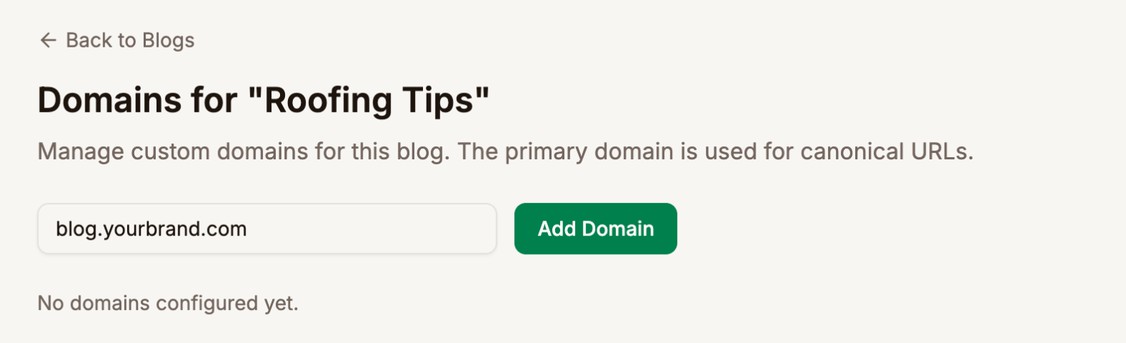
Type the domain only, without https:// or a path. Proferex checks that it is a real domain name, and that no other blog already uses it.
The first domain you add becomes the blog's Primary domain.
Add the DNS records
Sign in to the place where you manage DNS for your domain. This is usually your domain registrar or a DNS host.
- Add the CNAME record first. Its Name is your domain and its Value is the target shown in the panel. Use the copy buttons to avoid typos.
- Wait for the record to propagate. This usually takes a few minutes, and can take longer with some providers.
- Click Retry & Check.
- If more records appear in the table, such as a TXT record that verifies the domain or its certificate, add them too. Then click Retry & Check again.
Proferex also checks the domain on its own while the page is open.
Status stages
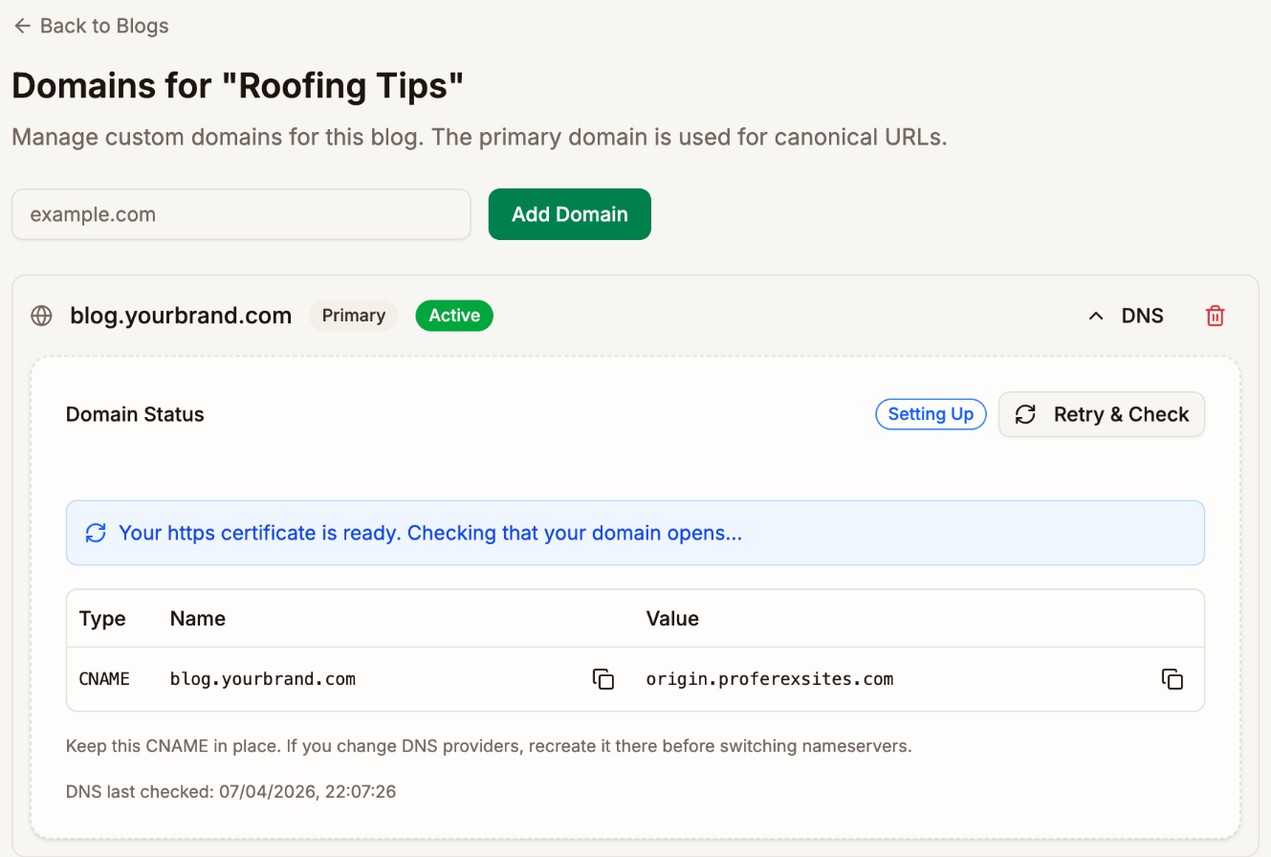
Each domain shows a status, on its row and in its DNS panel. The panel also shows whether visitors can reach the blog yet, so the two can differ for a short time.
| Status | What it means |
|---|---|
| Pending, Pending Verification | Proferex is waiting to see your DNS records. Check they are in place, then click Retry & Check. |
| Pending SSL | Your domain is verified and its security certificate is being issued |
| Setting Up | The domain and certificate are ready. Proferex has not yet confirmed that live traffic reaches your blog. |
| Checking Traffic | Proferex is testing that visitors can reach your blog |
| Active | The certificate is issued and live traffic reaches your blog |
| Not Reachable | The domain was set up, but visitors cannot reach it. Check the CNAME at your current DNS provider. |
| Error | Setup failed. The panel shows the reason. |
Once a domain is Active, keep the CNAME record in place. If you move to a different DNS provider, recreate the record there before you switch nameservers.
Primary domain
A blog can have more than one domain. The Primary domain is the main address search engines see for your articles.
To change it, click Set Primary on another domain and confirm. Pages search engines already indexed under the old domain may lose their rankings, so choose your primary domain early and keep it.
To remove a domain, click the trash icon on its row and confirm. A removed domain stops serving your blog. If you remove the primary domain, the oldest remaining domain becomes primary.
Next step
Once your domain is Active, open the blog with View Blog in its row menu, and check your articles and pages. To write your first article, see Articles.