

 IX
IX
Chapter 4
Password Login
Sign in with a password and share access with your staff.
This page shows you how to set a password, so you can sign in to Proferex without waiting for an email code.
You can always sign in with Google, or with a 6-digit code sent to your email. A password is optional.
Set or change your password
- Click your name at the bottom of the sidebar and choose Account.
- Open the Security tab.
- Enter your password in New password. It must be at least 8 characters.
- Enter it again in Confirm password.
- Click Save Password.
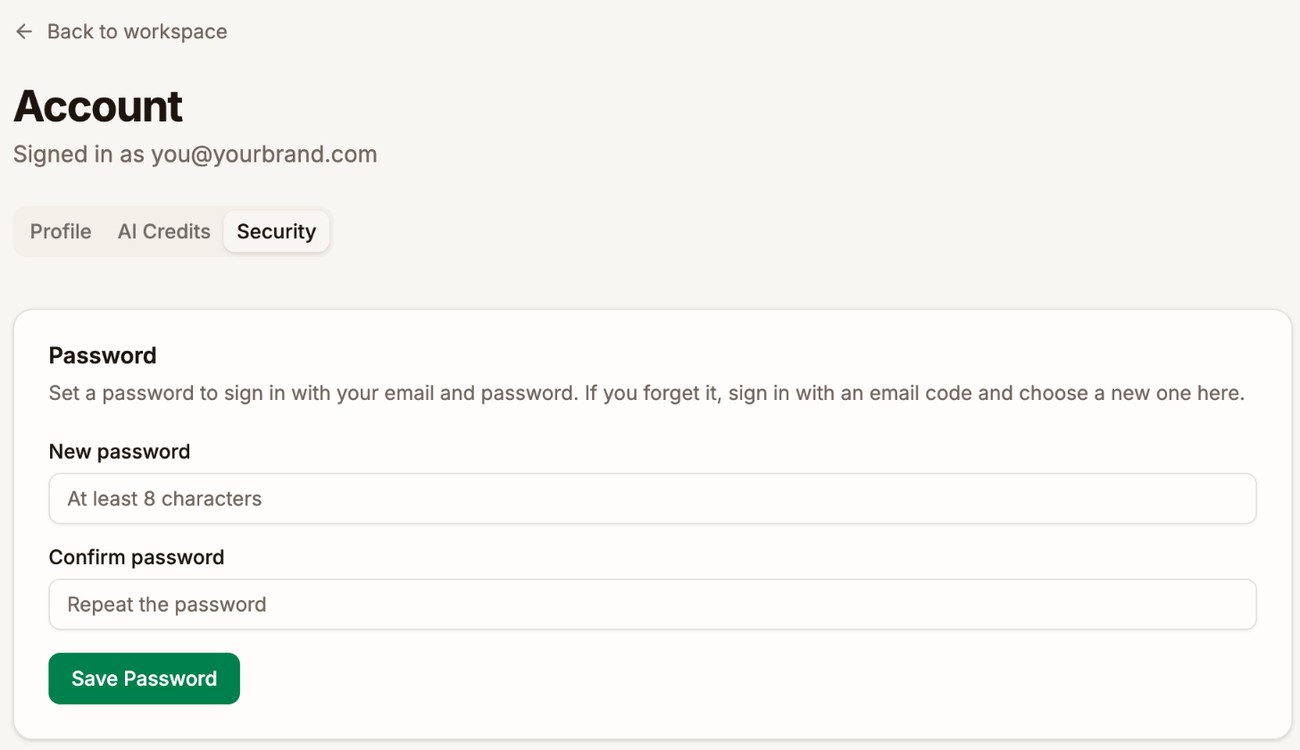
Sometimes Proferex asks you to confirm it's you first. You then get an email with a 6-digit code. Enter it in Verification code and click Save Password again. If the code doesn't arrive, click Send a new code.
Sign in with your password
- Go to the sign-in page.
- Click Sign in with a password instead.
- Enter your email and password, and click Sign In.
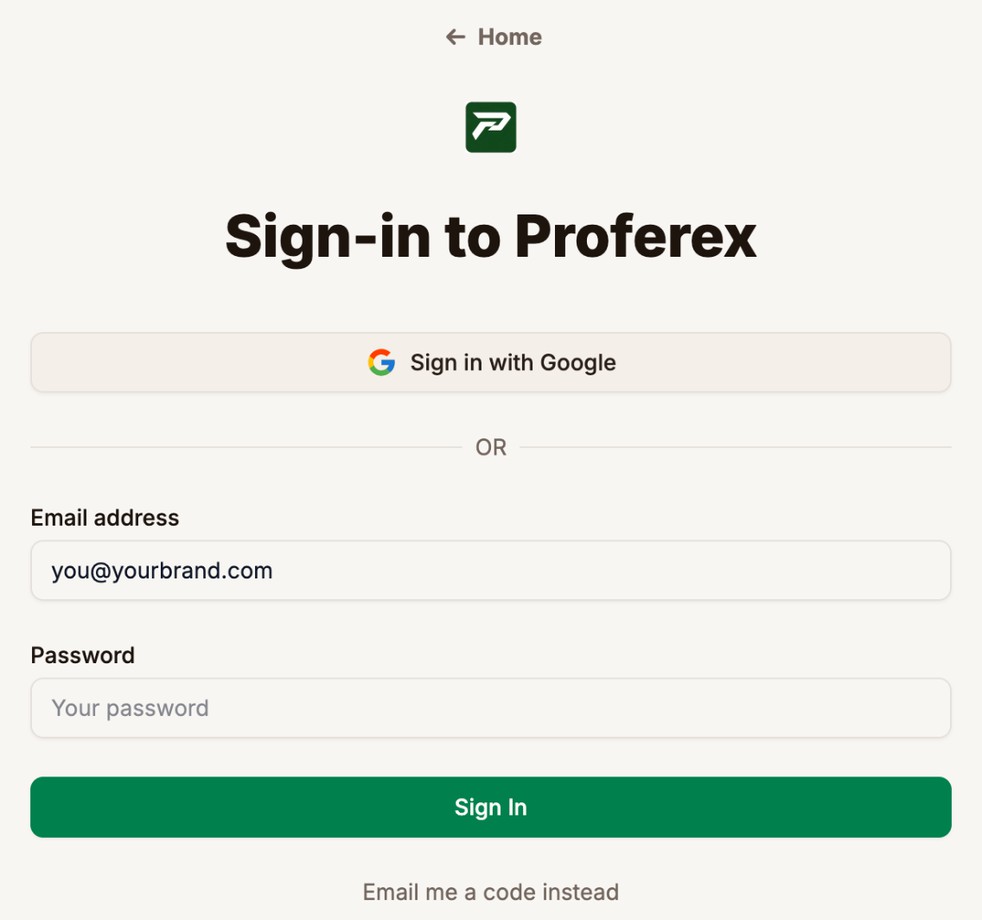
To go back to an email code, click Email me a code instead.
Forgot your password
Sign in with an email code instead. Then set a new password on the Security tab.
Next step
Set a password on the Security tab, then sign out and sign in once with it to check it works.